
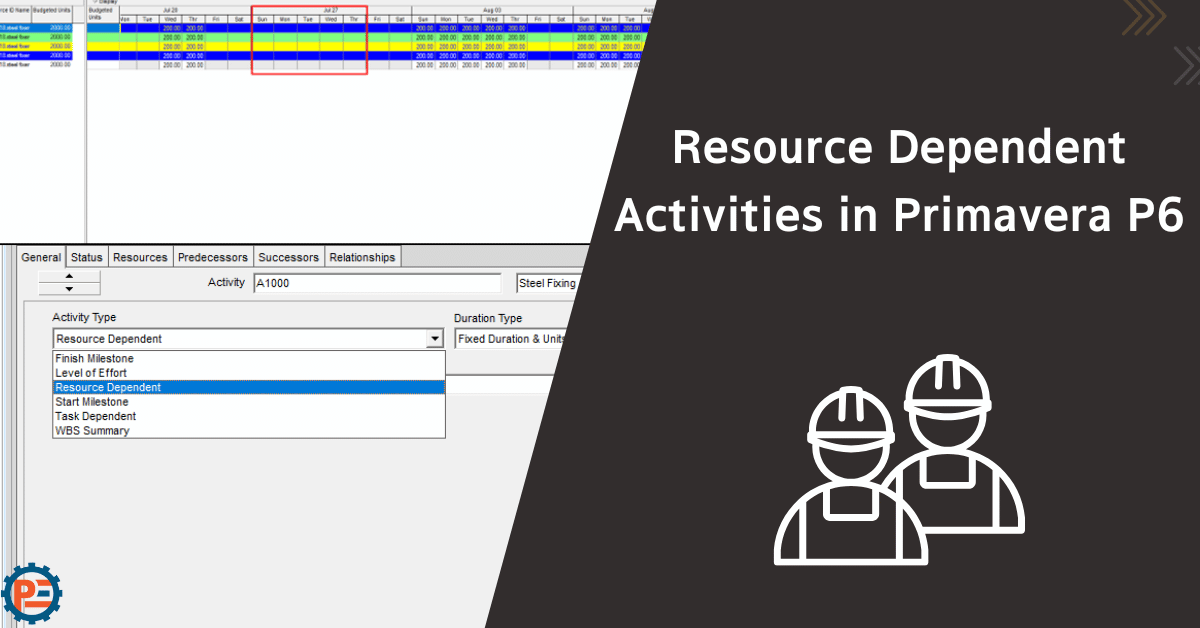
Resource Dependent Activities in Primavera P6
In Primavera P6, selecting the right activity type is essential in accurately modelling project logic during schedule updates. Among the various types, the Resource Dependent activity type is particularly important when the performance of an activity is directly tied to the availability and productivity of assigned resources. This means that the activity’s duration is not fixed but rather influenced by the number of resources assigned and their units per time. In this article, we will explore how the Resource Dependent activity type functions, when it should be used, and how it differs from other types like Task Dependent. Understanding this setting is key for planners who want to reflect realistic execution scenarios, especially in labour-intensive construction projects.
Different Activity Type Options
Primavera P6 offers several activity types, each designed to model various kinds of work behavior and scheduling needs. Understanding these types helps planners assign the right logic and resource interactions for more accurate project plans. The main activity types in Primavera P6 are:
Task Dependent
- Duration is controlled by the calendar assigned to the activity.
- Resource calendars do not influence the activity’s duration.
Resource Dependent
- Original duration follows the task calendar, only resource assignment and distribution of the units will follow the resource calendar.
- Best used for activities whose labor or equipment availability will differ from the project calendar, so we can have accurate resource assignment distribution.
Level of Effort (LOE)
- Has no independent duration; spans the duration of its predecessor and successor activities.
- Used for ongoing support-type work (e.g., Dewatering).
Our YouTube channel: Planning Engineer FZE.
Ready to take your skills to the next level? 🚀 Check out our Special Online Courses! 🚀
Gain valuable insights, boost your career, and learn from industry experts.
Start Milestone
- A zero-duration activity that marks a significant starting point.
- Used for tracking start events in the schedule.
Finish Milestone
- A zero-duration activity that marks a significant endpoint.
- Useful for showing project or phase completions.
WBS Summary
- Roll-up of all activities under a Work Breakdown Structure (WBS) element.
- Used for reporting and high-level tracking, not real work.
How to Make an Activity Resource Dependent
If we do not have the resource we want, we can create it from scratch, as explained below, or assign an existing resource.
Creating a Resource
A. Open the resource interface by pressing the labor symbol from the left menu. A new window will pop up. Choose the resource ID and name, and then press Next.

B. In our example, we will choose the resource type to be labor for elaboration; other resources can be added. Then press Next.
 C. In the “Price/Unit” put the cost per hour for this labor. In our example, the labor gets one dollar per hour, and the “Default Units/Time” is set automatically to 8 hours per day. Press next.

D. We want to create a specific calendar for this resource, so we will choose “Create a new personal calendar for this resource”. Press next and a new menu will pop up with a calendar.

The steps above explain how to create a resource; however, if you already have a resource and only want to change the calendar, you can start from the step below.
Get the calendar of an already created resource before
A. Open the resource window, open the “…” next to the calendar. A menu will pop up with different calendars. Choose any calendar from them, and then press the “Plus” button.


Primavera Online Basic Course -English
Online Primavera P6 Course for Engineers & Construction Managers Learn how to use Oracle Primavera P6 to plan, schedule, monitor, and control…
- 5,494 students
- WhatsApp support group
- Certificate

B. Then the “Create Personal Calendar” will be clickable. Click on it.

Starting from step number 1, creating a resource or modifying it will have the same steps.
1. This labor will be off every Friday and Saturday and will also be taking the summer vacation from 27-July-2025 till 31-July-2025. We added this to our calendar, and then we will press “OK”.

You can learn about how to add vacations in the calendar in a fast and smart way from this article: How to Add Holidays to P6 Calendar?
2. And finally, we will press “Finish”.

3. Select the activity you want to change and from the “General” setting, in the “Activity Type” choose “Resource Dependent”.

4. In the activities window interface, select the activity and from the resource menu choose “Add Resource” and from the new menu called “Assign Resources”, assign the resource that we created, then press the “plus sign”.

5. As can be seen in the screenshot below, on the Gantt chart, the activity did work on the week when the labor won’t be working. So, how is that?
Because the Gantt chart shows the durations of the activities based on the project calendar, meanwhile, since this activity won’t be working during this week, we need to check the resource assignment.

As can be seen in the screenshot below, no labor units were assigned to the week that the labor took as vacation. Meaning that making this activity “Resource Dependent” made sure that no units were assigned when in fact no work would be done, providing more accuracy. Meanwhile the Gantt chart did not show any stop of work during this period because Primavera P6 takes into consideration that activities usually have more than one resource.

Conclusion
Understanding and effectively using the Resource Dependent activity type in Primavera P6 is essential for creating accurate and realistic schedules, especially when activity durations are influenced by assigned resources. However, to fully benefit from this activity type, careful attention must be given to calendar alignment.
It is important to ensure that common holidays are reflected consistently in both the project calendar and the resource calendars to avoid unintended discrepancies in duration calculations. On the other hand, if certain holidays or non-working periods are specific to a particular resource (e.g., subcontractor off days or equipment maintenance), these should be entered only in the resource’s calendar, allowing the schedule to reflect real-world availability more accurately.
Moreover, planners should be cautious when choosing between Task Dependent and Resource Dependent activity types. Mixing them without understanding the implications can lead to confusing results due to the use of different calendars, which may affect start and finish dates or cause resource allocation issues. A disciplined approach in using these settings helps maintain clarity, improves forecasting, and ensures better project control.
To learn more about Advanced topics in Primavera P6, you can enroll in our Professional Planning Engineer (PPE) course.
Download the Resources of this Article
Resource Dependent Activities in Primavera P6 910.60 KB 694 downloads

Keep in Touch
Join our Email Newsletters and receive FREE weekly useful content!

Keep growing with Planning Engineer
Learn with a clear path
From Primavera P6 basics to claims, cost control and Power BI. Start with our free courses.
Browse coursesGet help on WhatsApp
Every course comes with a private WhatsApp support group where our team answers your questions.
Join a courseFind planning jobs
117 open planning and project control jobs. Post your resume so employers can find you.
See jobsGet tips by email
Free planning tips, templates and course offers. Unsubscribe any time.
Related posts:
 How to Introduce Yourself in a Planning Engineer Interview
  Method Statement Installation of HVAC Ductwork
  Why is the total cost in the power Query different than BOQ?
  Understanding Merge Hotspot, Diverge Hotspot, and Logic Hotspot in Project Scheduling
  How to Create a Simple Procurement Report in Power BI
You may also like

How to Minimize Total Float in Construction Activities

