How to Create a Simple Procurement Report in Power BI
Resuming our series about simple Power BI Reports, we will create a simple Procurement log from Excel for Power BI. This article will guide you through creating a simple Power BI report using a data Procurement log.
The First Article of the series is How to Create a Simple Power BI Report
Introduction
In construction and project management, keeping track of procurement activities is critical to ensure that materials and services are delivered on time. One of the most effective ways to manage this data is by using a procurement log, which provides an organized record of purchase orders, suppliers, and delivery dates. While Excel is commonly used for maintaining procurement logs, integrating this data into Power BI can elevate its utility.
Ready to take your skills to the next level? 🚀 Check out our Special Online Courses! 🚀
Gain valuable insights, boost your career, and learn from industry experts.
In this article, we will walk you through transforming your procurement log from an Excel sheet into a dynamic Power BI report. By doing so, you’ll gain the ability to visualize and analyze procurement performance in real time, making it easier to identify trends, track supplier performance, and ensure that your project stays on schedule. With Power BI’s powerful data transformation and visualization tools, you can take your procurement management to the next level.
Data Required
We need an Excel procurement log as follows:

Here we have more than one project so this Excel sheet contains the main columns and may vary from company to company.
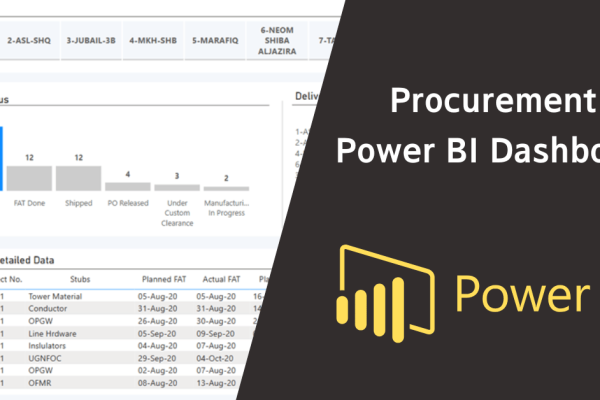
This is the report we will create in this article.

Main Columns That We Have in our Procurement Log
o S.N (Serial Number) for all the material included in the Excel sheet
o The Project number as this Procurement sheet is for more than one project
o Stubs stands for the Material Name
o Planned FAT & Actual FAT and FAT stands for “Factory Acceptance Test”
o Planned Delivery Date & Actual Delivery Date
o Current Status (Delivered – FAT Done – Manufacturing – PO Released – Shipping – Under Custom Clearance)
o Status (Expected – Late – On Time)
This is the Columns we need in the procurement log, but you may have more columns than this.

We are going to link this Excel sheet to Power BI to start creating the Report, please check this article to link the Excel sheet to Power BI.
Step 3: Import Data into Power BI
Note: This Excel sheet will be included
- Open Power BI Desktop and select Get Data from the Home ribbon.
- Choose the file format (Excel) and locate your prepared file.

- Load the data into Power BI and confirm that the fields are imported correctly. Power BI will ask you, which tables in your Excel sheet you want to import in this report. We will choose the set of tables in the picture and click “Load”
Step 4: Build Your Power BI Report
Now it’s time to create visualizations in Power BI:
After loading your data you have to revise your data and check the relations first, so navigate to the data table view, and have a quick look to make sure that all data has been imported.


You can change the data format and sort or filter your data according to your preferences. We need the date to have another format like “31-12-2024”, Once you click on the column the Column tools appear, From “Format” Change the date format.

To add a new visual, From the visualizations menu choose the visual you want to show in your report.

Click on the Table function and you will see the visual in the report immediately. You can resize the visual by dragging it from the borders, The visual is empty, and we will fill it with data.

Then drag the columns from the Data Field beside the Visualization with the column’s order in the Excel sheet as follows:
1. The Table Visual

Click on the small arrow at the data label and then click on Planned FAT to change the date format to its default format.

In the table visual that we’ve added, the header of the project number says “Sum of Project No.”, as the Power BI sees that this column should be summed, but we want to change its name to “Project No.” as follows:


Power Bi Monitoring and Controlling with P6
Microsoft Power BI is very easy software. However, it is magically solved the slow performance of excel for large data, added new…
- 1,202 students
- WhatsApp support group
- Certificate
To change the table headers text, double-click on the data field, change it, and press enter.

After changing the name we need to change the type of calculation on the Column from Sum to Don’t summarize.

We will start doing some modifications in the visual like:
- Creating Conditional Formatting for the Status Column

This window will show up.

The format is when the Material delivery date is on time the background will be green but if the material is delayed or late the background will be red, but when the material is expected, the background will be yellow.

As you can notice by the colour the status of the materials

2. The Text Filter Visual
What if we want to search for a certain material by its name? Power BI has a visual called “Text Filter”. It works as a search bar where you can type any keyword and then the report will be filtered to show only the data containing this keyword.
By default, you won’t find the text filter visual in the visualizations menu. You have to download it from the visuals store. Click on the three dots at the visualizations menu and select Get more visuals then download this visual and make sure that you are connected to the internet.

After clicking on Get more visuals, this window will show up. As you can see the text filter is recognizable but you can search for it in the search bar, then click on it.

Click on the download sample and you will find it in your visualization.

Click on the filter and It will added to the report as follows.

Put the Stubs in the Text filter field. The filter works when you type any name of the stubs name in it, It filters all the stubs with the same name.

3. The Slicer Visual
We will add two slicers one for the Stubs and another one for the Status.
To add filters, click on the slicer visual from the visualization menu.

We will filter the report data using the Stubs and Status.
This is the empty Slicer we will drag the Status and drop it into values.

Do the same steps for the Stubs, This is the final look of the two filters, but we need to have it a dropdown not a vertical list as shown.

Click on the Visual then go to Format Visual, and from Options choose Dropdown. And do the same for the other slicer.

This is the Final shape of the slicer Visual.

4. The Clustered Column Chart
Now we want to add a column chart that shows the number of items according to their status. Start by adding a column chart visual then drag and drop the data into the visual fields.
We want the X-axis to show the status of the items, while on the Y-axis we want to show the count of the items at each status. That means we will drag the status into both fields, X axis and Y axis.

So we need to add the title to the visual, add data labels, and Change column colors to show the importance of the “delivered” value.
From Format Your Visual, go to General, Click on Title.
In the Text Box type “Material Status” or whatever title you want

From Format Your Visual, go to Visual, Turn the Data Labels on
You can see that every column has its label above.

To change the colour of the columns, From Visual, Go to Columns, choose all columns except Delivered from Categories, and choose the grey colour for all columns to show the importance of the Delivered Material.

Until this point, we almost created all the visuals we need in our report, however, we can add some extra visuals to make the page look better. Let’s add the company name and logo.
Just like any other Microsoft product, you can add a text box from the insert menu.

You can write whatever you want in the Box and then edit the sentence from the menu below the box.
This is the final shape of the Report.

You can find the Power BI model and the Excel sheet included in the Article’s resources if you are engaged in our POWER BI Course.
Download the Resources of this Article
How to Create a Simple Procurement Report in Power BI 1.22 MB 4604 downloads

Keep in Touch
Join our Email Newsletters and receive FREE weekly useful content!

Keep growing with Planning Engineer
Learn with a clear path
From Primavera P6 basics to claims, cost control and Power BI. Start with our free courses.
Browse coursesGet help on WhatsApp
Every course comes with a private WhatsApp support group where our team answers your questions.
Join a courseFind planning jobs
109 open planning and project control jobs. Post your resume so employers can find you.
See jobsGet tips by email
Free planning tips, templates and course offers. Unsubscribe any time.
Related posts:





Tag:power bi