

Project requirements for the working hours
To address the issue of working hours requirements for different project activities, you can follow these steps:
1. Identify Working Hour Requirements:
Determine the specific working hour requirements for each type of activity in your project. In this case, you have three categories: Authorities Submission & Approval, Construction Activities, and Procurement & Material Delivery.
Ready to take your skills to the next level? 🚀 Check out our Special Online Courses! 🚀
Gain valuable insights, boost your career, and learn from industry experts.
2. Create Calendars:
Develop three calendars, each corresponding to one of the identified activity types. Assign specific working hours/days to each calendar based on the project requirements:
- Calendar 1: 5 days with 8 hours for Authorities Submission & Approval
- Calendar 2: 6 days with 8 hours for All Construction Activities
- Calendar 3: 7 days with 8 hours for Procurement & Material Delivery
Once you create the 3 Calendars assign them to the related Activities

3. Modify Activity Durations:
Assign the appropriate calendar to each activity based on its type. This will ensure that the activity durations align with the working hour requirements. For instance:
a. Assign Calendar 1 to activities related to Authorities Submission & Approval.
b. Assign Calendar 2 to all construction-related activities.
c. Assign Calendar 3 to tasks associated with Procurement & Material Delivery.
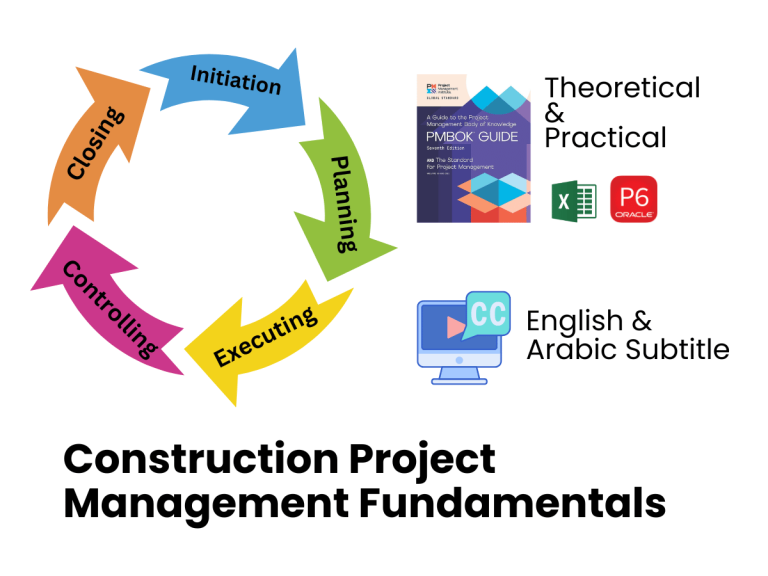
Construction Project Management Fundamentals Course
Learn how real construction projects are planned, managed, and controlled — from initiation to closing — using practical methods to deliver on…
- 7,825 students
- WhatsApp support group
- Certificate
A. At Shop drawings WBS we should assign Calendar 1 (5 X 8)

Choose the last Shop drawing Approval and Click Shift then CTRL+E
This will assign the Calendar to all shop drawings with the same Calendar.
B. At Procurement WBS we should assign Calendar 3 (7 X 8)

Choose the last Material Delivery and Click Shift then CTRL+E
This will assign the Calendar to all shop drawings with the same Calendar.

C. At Construction WBS we should assign Calendar 2 (6 X 8)

Choose the last Construction Activity and Click Shift then CTRL+E
This will assign the Calendar to all shop drawings with the same Calendar.

4. Adjust Working Hours:
Once calendars are assigned, the duration and float of activities will automatically adjust to reflect the specified working hours. Activities scheduled under Calendar 2 (Construction Activities) will now have a duration of 6 days with 8 hours per day, while those under Calendar 1 and Calendar 3 will reflect their respective working hour requirements.
5. Review and Validate:
After making the adjustments, review the schedule to ensure that all activity durations and dates align with the project’s working hour requirements. Verify that the changes accurately reflect the project timeline and constraints.
By creating and assigning specific calendars to different types of project activities, you can effectively address the working hour requirements outlined for each activity category. This approach ensures that the schedule accurately reflects the project’s operational needs and helps maintain consistency throughout the planning process.
Download the Resources of this Article
Project requirement for the working hours 314.60 KB 836 downloads

Keep in Touch
Join our Email Newsletters and receive FREE weekly useful content!

Keep growing with Planning Engineer
Learn with a clear path
From Primavera P6 basics to claims, cost control and Power BI. Start with our free courses.
Browse coursesGet help on WhatsApp
Every course comes with a private WhatsApp support group where our team answers your questions.
Join a courseFind planning jobs
117 open planning and project control jobs. Post your resume so employers can find you.
See jobsGet tips by email
Free planning tips, templates and course offers. Unsubscribe any time.
Related posts:




You may also like

How to Minimize Total Float in Construction Activities

