
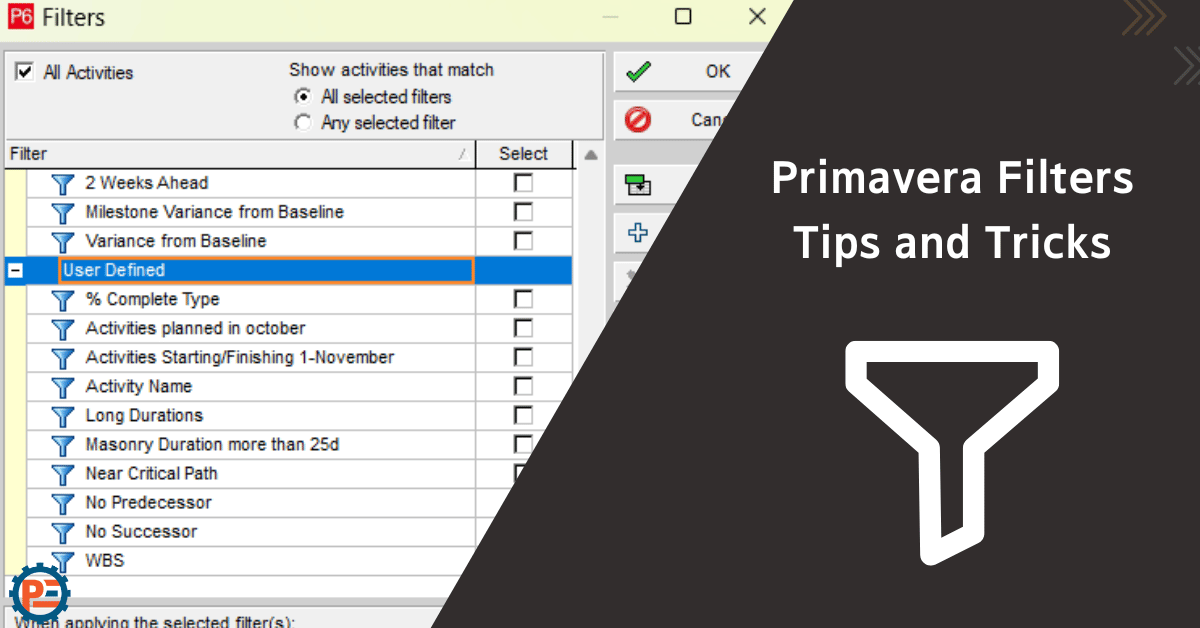
Primavera Filters Tips and Tricks
As previously mentioned in the “Important filters in Primavera P6” article, project managers can save time, improve accuracy, and maintain better control over their schedules by mastering customizing the filters they need. In dynamic projects where timely and informed decisions are critical, filters serve as a powerful feature to streamline project analysis and keep the team aligned toward successful completion.
Some Customized Filters you might need to be faster and more efficient
From “User Defined” choose new and we can start creating filters as we wish.
1. Activities by WBS
Ready to take your skills to the next level? 🚀 Check out our Special Online Courses! 🚀
Gain valuable insights, boost your career, and learn from industry experts.
if you want to see for example one villa from the 10 scope villas you can filter by the WBS.

2. Activity Name
You can filter by name, if you are using a smart system that helps you make sure that all the names are written correctly, for example, all the masonry activities are written exactly the same, you can check our course on how to make a smart system to make your schedules as efficient as possible.

3. Activity Start/Finish on a specific date
If you want to know the activities that will start on a specific date for some reason.

4. No Predecessor/Successor
If you want to check the activities that do not have a predecessor or successor. The photo attached shows the predecessor filter. The successor is the same you should choose “successor” in the parameter choose equals and leave the value empty.

5. Activities in a specific Month
If you want to know the activities that will start OR finish in a specific month.

Primavera Online Basic Course -English
Online Primavera P6 Course for Engineers & Construction Managers Learn how to use Oracle Primavera P6 to plan, schedule, monitor, and control…
- 5,497 students
- WhatsApp support group
- Certificate

Note:
“Or” in the filter “any of the following” will get you any of the conditions you placed, while “And” in the filter “All of the following” will give you the activity that has all the conditions that you placed.
6. Long duration activities
Suppose the client mentions that no activity should be greater than 25 days and you want to filter to get those activities to decrease the duration. You can use this filter.

7. Percent Complete Type
If you want to check that all your activities are duration. Or that some are physical because you are going to use activity steps you can use this filter.

If you want to learn more about activity steps you can check our article about it.
8. Near Critical Path
If you want to check the activities that are near the critical path to make it reasonable before starting the project. You can make a filter to check them. Let us check the near that are less than 5 Days as Total Floats.

9. Budgeted Total Cost greater than 1 million USD
If you want to filter to see the budgeted total cost greater than a specific number let us say more than 1,000,000 USD. For any reason, you can create a filter to check the cost.

Combining two filters
You might need to use different filters at the same time. We can combine two different filters in one filter.
1. Duration of masonry that is greater than 25 days.

2. Only construction activities that are planned to start in December.

3. Activities that equal 5,000,000.00 USD with zero total float.

Conclusion
Customizing Filters in Primavera P6 is an essential step for efficient project management. They enable planners and project managers to focus on specific data sets that are required for this specific project to enhance accuracy and improve decision-making.
Download the Resources of this Article
Primavera Filters Tips and Tricks 672.65 KB 344 downloads

Keep in Touch
Join our Email Newsletters and receive FREE weekly useful content!

Keep growing with Planning Engineer
Learn with a clear path
From Primavera P6 basics to claims, cost control and Power BI. Start with our free courses.
Browse coursesGet help on WhatsApp
Every course comes with a private WhatsApp support group where our team answers your questions.
Join a courseFind planning jobs
117 open planning and project control jobs. Post your resume so employers can find you.
See jobsGet tips by email
Free planning tips, templates and course offers. Unsubscribe any time.
Related posts:




You may also like

How to Minimize Total Float in Construction Activities

