

Import progress updates with actual dates from excel to Primavera p6
Import progress updates with actual dates from Excel to Primavera p6.
Are you looking to streamline your project management process by integrating progress updates from Excel into Primavera P6? Look no further! In this post, we will guide you through the steps to import actual dates from Excel directly into Primavera P6, ensuring accurate and up-to-date project tracking
Step 1: Run the Primavera to Your Current date.
Ready to take your skills to the next level? 🚀 Check out our Special Online Courses! 🚀
Gain valuable insights, boost your career, and learn from industry experts.
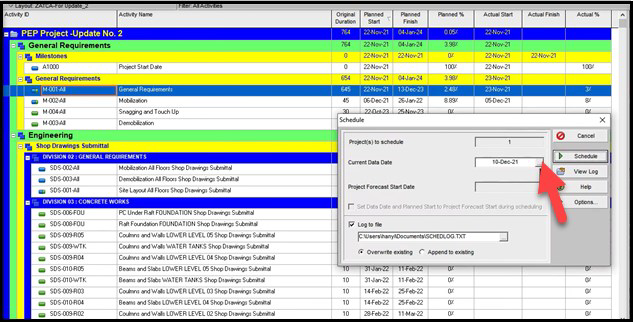
Step 2: Copy the Time Schedule from Primavera P6 to the Excel Sheet
- Ctrl + A: To Select all the Schedule.
- Ctrl + C: To Copy the Schedule.
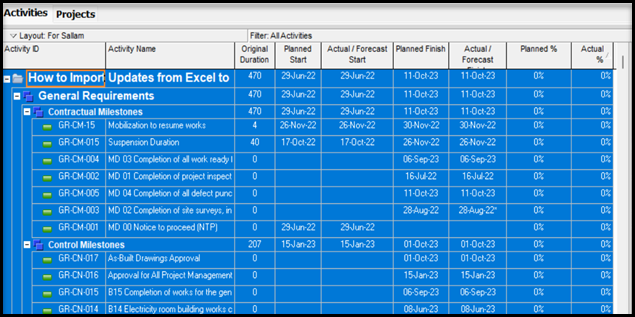
Note: This Excel sheet was created by Hany Ismail, and it makes the Sheet looks like the Primavera Format
Link to Download it: https://planningengineer.net/from-primavera-to-excel-sheet/
When you open the Excel Sheet, it will look like that and you can choose the Colour Theme you want and paste it into the First Column

After Copying the Primavera and Paste it to the Excel Sheet1
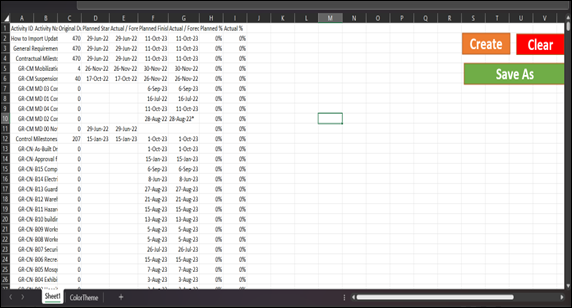
Click on Create to make it looks like the Primavera Then Click on Save As
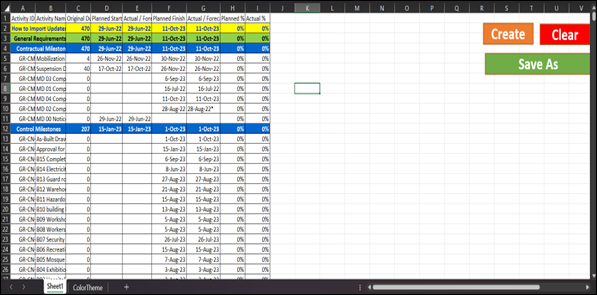
Then Update the Excel Sheet from the Site Engineers on the three Columns
(Actual Start, Actual Finish, Actual Percentage)
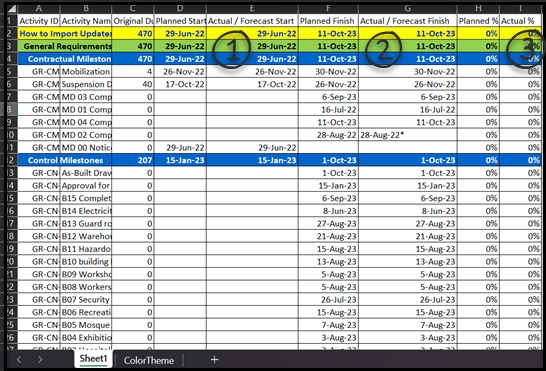
Step 3: Export from Primavera Excel sheet to put on it the Updates from the site.
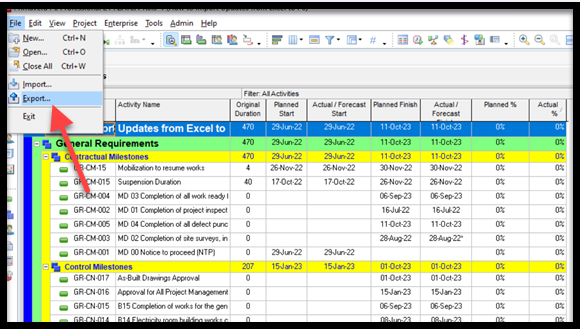
Steps
- Spreadsheet – (XLSX) + Next

2. Activities + Next
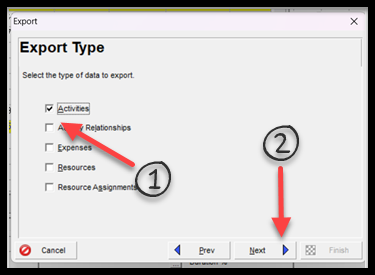
3. Check on Export + Next
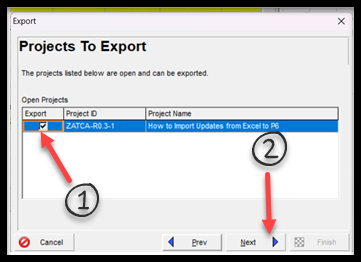
4. Choose Activities + Modify
Primavera Online Basic Course -English
Online Primavera P6 Course for Engineers & Construction Managers Learn how to use Oracle Primavera P6 to plan, schedule, monitor, and control…
- 5,400 students
- WhatsApp support group
- Certificate
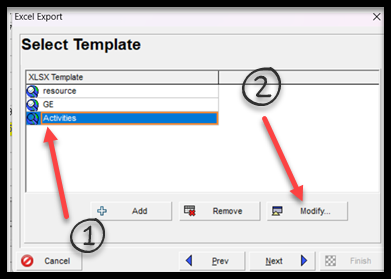
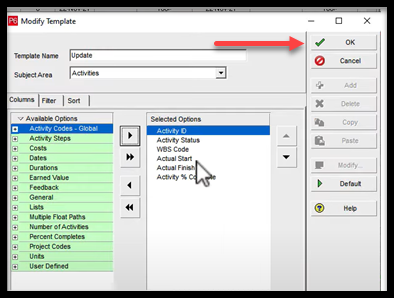
These are the Columns that you will update with on Excel+ OK
Choose the location of the File + Next
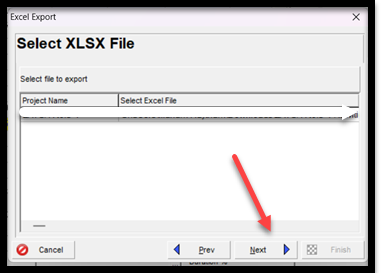
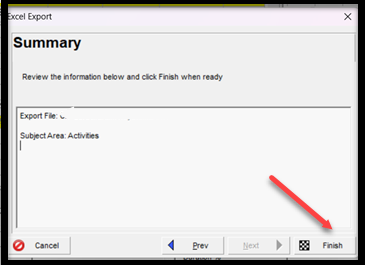
Finish
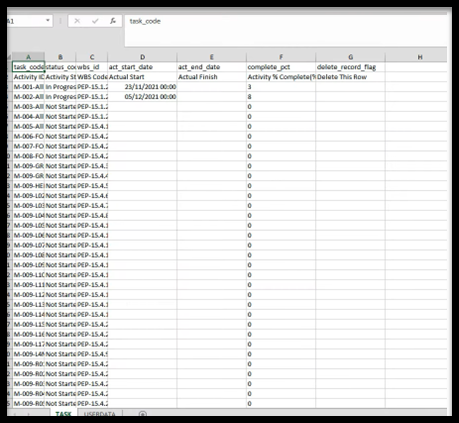
This is the Sheet exported From Primavera
You will make a VLOOKUP Equation in Excel to find the updated activities from the Updated Sheet to Primavera Exported Sheet to Fill the 3 columns.
(Actual Start – Actual Finish – Actual Percentage)
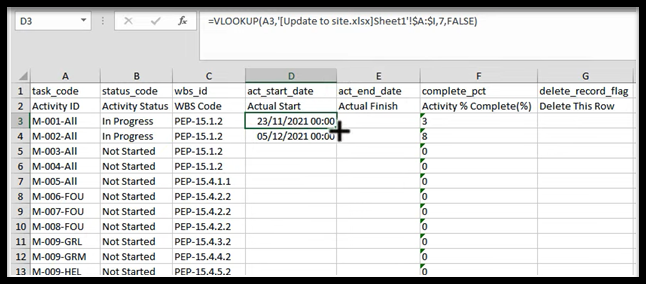
After filling the 3 columns with their Values from the VLOOKUP
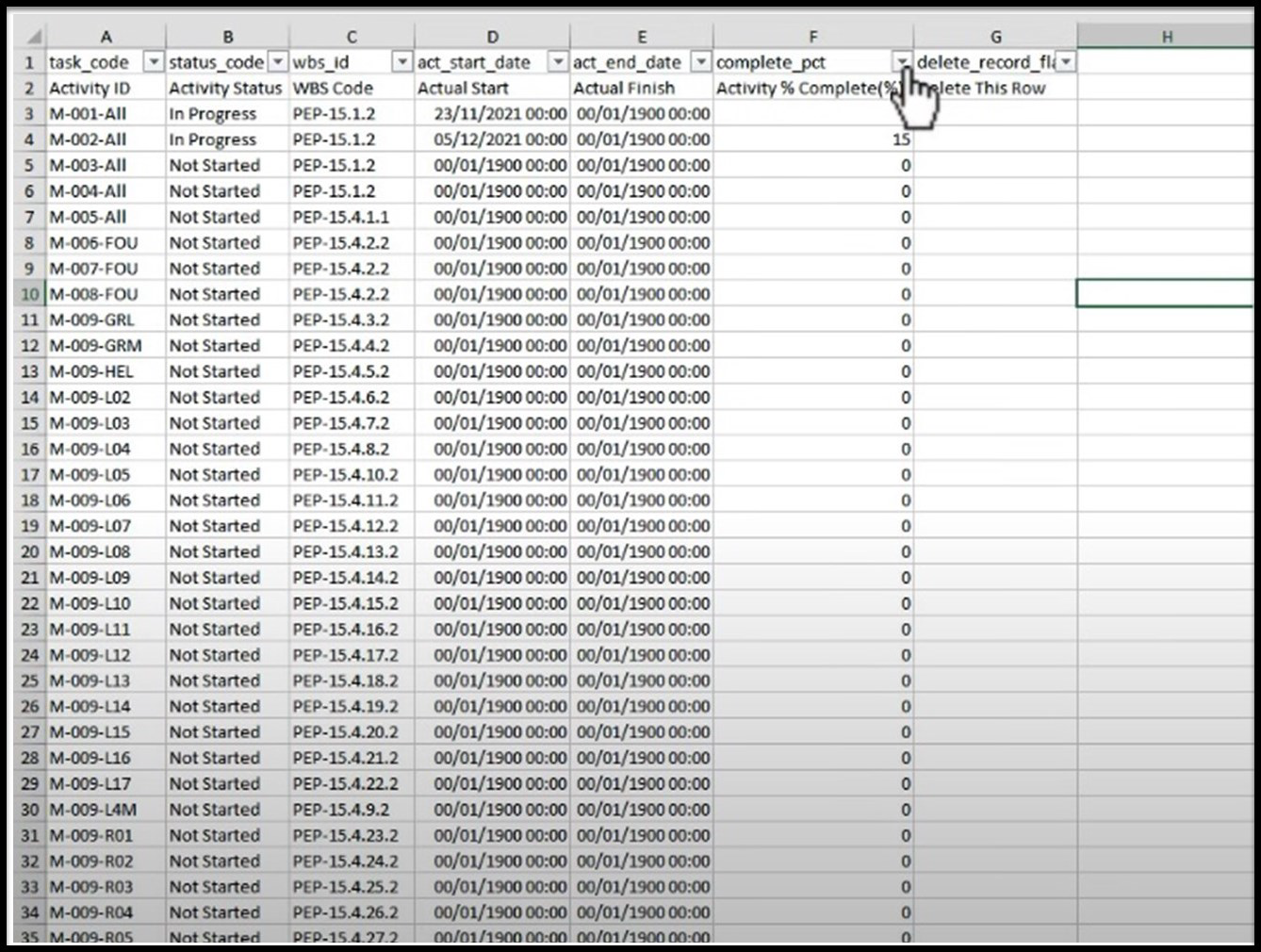
Then Filter all the activities that have 0 % Complete and Delete them to have only the Updated activities
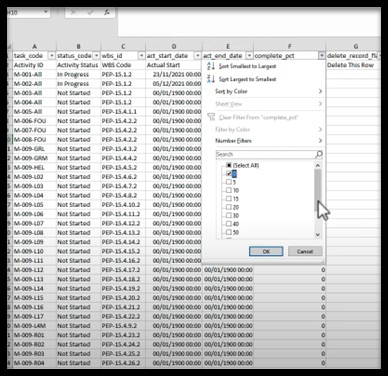
Then Filter the Zero Actual Finish for the updated activities and delete it
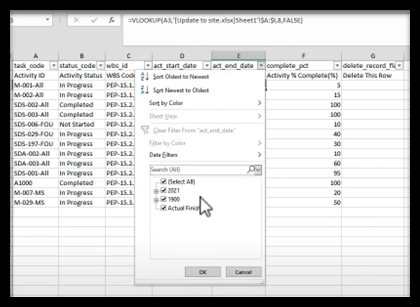
This is the only Updated Activities, Then Change the Activity Status to Completed to all activities that have 100 % Complete and in Progress to all Activities that have less that 100 % Complete in Activity % Complete
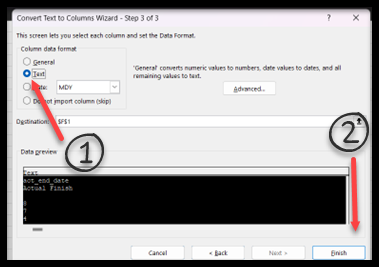
The last step before importing it to Primavera is to convert the Number to Text
1. From Data Click on Text to Columns
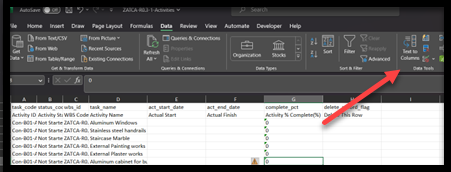
2.Click on Next

3. Choose Comma
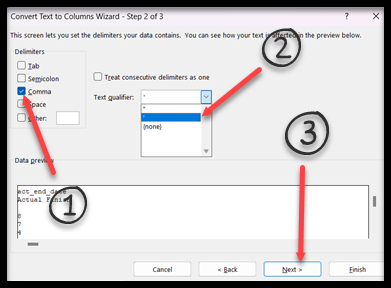
4. Choose Text + Next
The Last Step to Import the Updates to P6
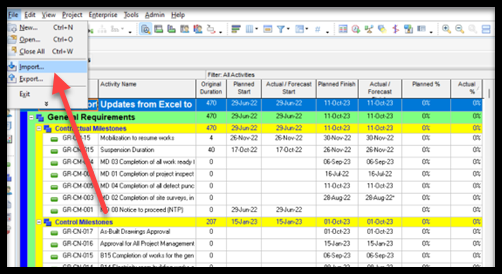
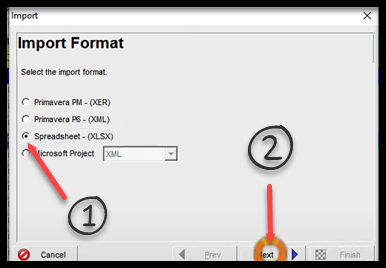
- Choose Spreadsheet + Next
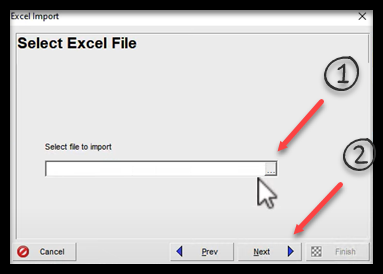
2. Select the File Location + Next
3. Check on Activities + Finish.
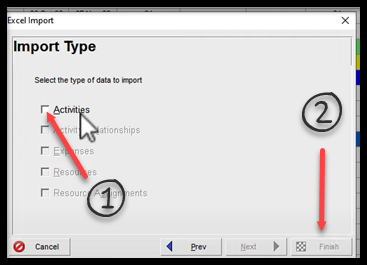
The Update will be successfully Imported to Primavera
Watch this video:
Download the Resources of this Article
Import progress updates with actual dates from excel to Primavera p6 2.21 MB 4033 downloads

Keep in Touch
Join our Email Newsletters and receive FREE weekly useful content!

Keep growing with Planning Engineer
Learn with a clear path
From Primavera P6 basics to claims, cost control and Power BI. Start with our free courses.
Browse coursesGet help on WhatsApp
Every course comes with a private WhatsApp support group where our team answers your questions.
Join a courseFind planning jobs
84 open planning and project control jobs. Post your resume so employers can find you.
See jobsGet tips by email
Free planning tips, templates and course offers. Unsubscribe any time.
Related posts:






You may also like

How to Minimize Total Float in Construction Activities

