

How to create cost loading and BOQ mapping sheet to an existing schedule
I received an email from a planning engineer asking how to do it smartly if I already have the P6 submitted baseline schedule with activities. I want to load the cost and resources concerning my BOQ.
In this article, you will learn how to link your submitted baseline schedule activities to your BOQ smartly.
Step 1: Extract Activities from your submitted Baseline Schedule
Open your Primavera P6 Baseline schedule.
Ready to take your skills to the next level? 🚀 Check out our Special Online Courses! 🚀
Gain valuable insights, boost your career, and learn from industry experts.

To work on this submitted baseline schedule activities we need to make a master activity list from it. In our case study, the activity name consists of the “activity name” then ”–“ then “2 letters” referring to the floor, and the activity ID is very complicated.
So we need to make a new activity ID simple which could done with Excel power query too.
From enterprise choose user-defined fields and click Add.

Name the column Activity ID (NEW) and make the data type Text.

From columns show your new column in the layout.

Export your P6 schedule activities spreadsheet and delete all the columns except Activity Name.

Step 2: Simplify the Activities to Create Master Activities
1. Identify Commonalities: Review the activities and identify patterns or Words related to floors, zones, or areas.
- For example, “Excavation-UG” can be grouped under “Excavation.”

2. Remove Specific Details: In Excel, delete columns or text related to Floors, Zones, and Areas:
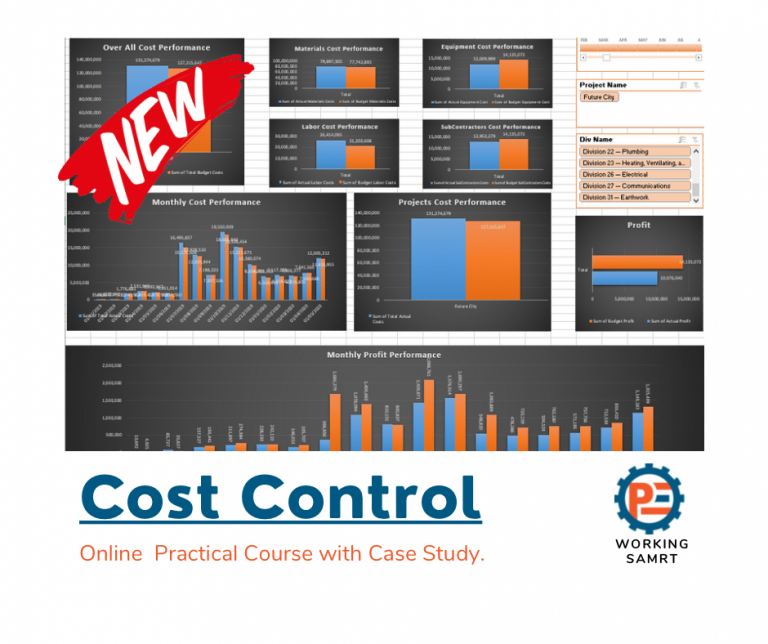
Cost Control for Construction Projects
Course WhatsApp Support Group All enrolled trainees get an invitation to the course WhatsApp support group, where our team answers your questions…
- 810 students
- WhatsApp support group
- Certificate
Select the Activity Name and Activity ID columns, replace the letters for floors with nothing, and click Replace All.

After deleting specific details and any columns that you do not need in the sheet, the sheet shape must be yours.

3. Remove Duplicates:
- Highlight the activity column, and go to “Data”
- Click “Remove Duplicates”.
- Mark all columns and click “OK”

Now, the resulting list is your Master Activities, which represent a higher-level grouping of tasks.

You can now Create a new unique Activity ID for these Master Activities and Save.
Step 3: Link Master Activities to the BOQ
Now, connect the Master Activities to the BOQ using a structured approach:
1. Prepare the BOQ in Excel: Ensure the BOQ includes clear descriptions, quantities, and cost data.

2. Map Activities to BOQ Items:
- Add your master activities with the new IDs to a new sheet in your BOQ Excel sheet.

- Match each Master Activity to the corresponding BOQ item. Use Excel’s “VLOOKUP” or similar functions to automate this process where possible.

3. User Defined: input the new master activity IDs for all project activities too. This column will be invaluable soon matching the new master activity IDs with the existing activities.

4. Smart Mapping Method: Create a unique identifier for each activity and BOQ item (e.g., codes based on the WBS of the project to get all the activities right from the first time to facilitate accurate matching.

Step 4: Match your Cost Loading activities with P6 submitted baseline schedule
1- Create Cost loading: Now after you have done your cost loading sheet, your sheet should have this shape.

2. Match Existing Activities: Check if all activities in your cost-loaded Excel file are represented in the Primavera P6 schedule.

3. Add or remove Activities: Adjust as needed:
- Add missing activities to the schedule.
- Remove redundant activities to maintain consistency.
After this step, now you can load your cost to your P6 schedule easily!
Conclusion
By converting submitted baseline schedule activities into Master Activities and linking them to the BOQ, you can simplify cost loading and enhance project management efficiency. This method not only ensures consistency between schedule and cost data but also supports better tracking and reporting. Regular reviews and updates will help maintain the integrity of the cost-loaded schedule throughout the project lifecycle.
Download the Resources of this Article
How to create cost loading and BOQ mapping sheet to an existing schedule 2.23 MB 4778 downloads

Keep in Touch
Join our Email Newsletters and receive FREE weekly useful content!

Keep growing with Planning Engineer
Learn with a clear path
From Primavera P6 basics to claims, cost control and Power BI. Start with our free courses.
Browse coursesGet help on WhatsApp
Every course comes with a private WhatsApp support group where our team answers your questions.
Join a courseFind planning jobs
85 open planning and project control jobs. Post your resume so employers can find you.
See jobsGet tips by email
Free planning tips, templates and course offers. Unsubscribe any time.
Related posts:





You may also like

How to Minimize Total Float in Construction Activities

