

Complete Guide to Using Store Period Performance in P6
In Primavera P6, Period Performance or Financial Period is a time frame that enables project managers to track and report on project performance using financial data such as costs, budgets, and earned value. These periods are typically aligned with a company’s financial calendar, which may be weekly, monthly, quarterly, or any other period determined by the organization.
Why use Store Period Performance
Let us say that we want to update our project, we have an update at the end of August with earned values and another update during the first week of September also with earned values, however, in the second week of September we have an update with zero value (no work done), and the third week we have some work done once again. Primavera by default will distribute the value till the cut-off date and neglect that no work was done during the second week of September. If we used the Store Period Performance. Primavera will respect the earned value done each week and will not distribute the values over the weeks till the cut-off date. You can read more about Earned Value Management calculations from here.

Ready to take your skills to the next level? 🚀 Check out our Special Online Courses! 🚀
Gain valuable insights, boost your career, and learn from industry experts.
Without Financial Period Performance:
The value was distributed even in the week with zero progress.

With Financial Period Performance:
Here, the period with no performance can be found to be zero as it should be.

Key Features of Store Period Performance in Primavera P6
- Defined Time Intervals: Financial periods are established at regular intervals (e.g., months) to correspond to the organization’s financial reporting schedule.
- Storing Period Performance: At the end of each financial period, project managers can save performance data such as Actual Costs, Earned Value, and Actual Units. This data can be used to evaluate project performance over time. You can learn more about cost control from our provided course for “Cost Control for Construction Projects”.
- Tracking Progress: Financial periods assist in tracking progress by comparing planned and actual performance. This enables project managers to monitor how effectively the project fits in with its budget and timeline.
- Reporting: Financial periods are critical for creating periodic reports that demonstrate project performance. These reports are frequently used in executive meetings to discuss the financial state of projects.
- Historical Data: Once recorded, financial period data can be retrieved for historical analysis, which is useful for future project planning and comparison.
However, storing performance data for each period increases the size of the project database, which can impact the overall performance of the P6 system, especially in large projects with several updates.
How to use Store Period Performance in P6
1. Open the financial period calendar from the Admin Ribbon.

2. Choose to modify the “Calendar” and a new window will open as shown below for this calendar. If you want to add several intervals at once, you create a batch for the project to the financial period calendar. Or you can add manually one at a time by choosing the “add” option. In this example, we will add a batch which means that it will automatically add intervals to the project.
 3. You start to determine the “batch start date” and “batch end date” meaning the period you want to monitor. in this example, we will choose to monitor the year 2024. So, we will start the period from 5-Jan-2024 and end it in 3-Jan-2025.
Then in the financial period choose the period you want to be updating and monitoring your project. In this example, we will be updating and monitoring weekly. so, we will choose the financial period “Every 1 week”.
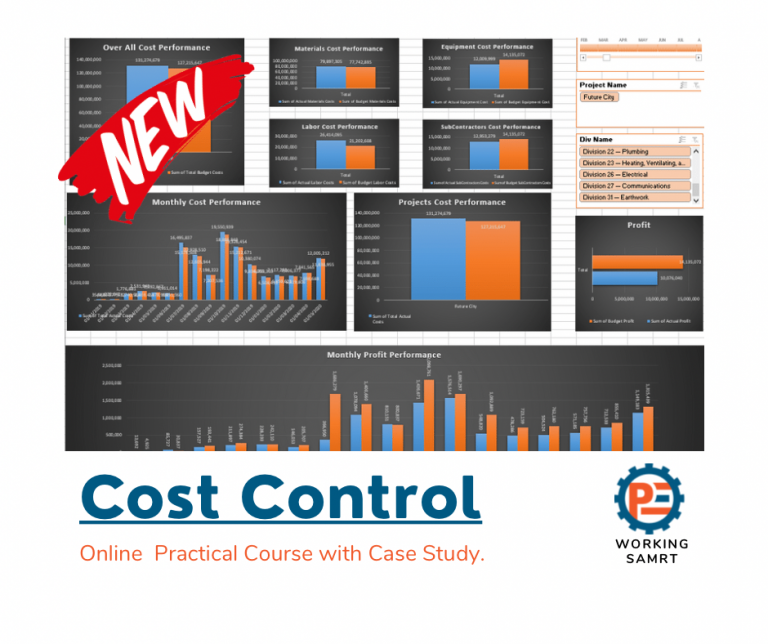
Cost Control for Construction Projects
Course WhatsApp Support Group All enrolled trainees get an invitation to the course WhatsApp support group, where our team answers your questions…
- 814 students
- WhatsApp support group
- Certificate
choose the “Period Ends On” date. So, if you want a weekly period and you choose the batch start date 5-Jan-2025 which was Friday then choose the end date to be Thursday to make it a whole week then press “Batch Create”.
Note: those inputs change based on the project.
4. Primavera P6 will then calculate and provide weekly periods as shown in the figure below.

5. Make sure that this financial Period calendar is assigned to the project.

6. Then start your update. let’s assume you are updating the 1st week (from 5-Jan-2024 to 11-Jan-2024). After you finish updating this period, run the project on the cut-off date of 11-Jan-2024. You can read more about updating your schedule from here.
7. You need to log in the changes you made so you open the tools ribbon, and then choose “Store Period Performance”
 8. Then choose the “financial period” that the updates were made during. Here we chose the first week in our batch which was (5-Jan-2024 to 11-Jan-2024). And then press the “Store Now” button. This means that you stored the Performance values in this period.
 9. Keep repeating steps number 6,7 and 8. Those steps can be summed up in “Update your activities and then store the data in the period you created in the batch”. Make sure you are storing the data correctly in the right period.
10. Here, in this step we have two options. The first one is to check period values using the “spreadsheet fields”. The other option is to view it in the “activity’s columns”.
How to view the stored values
Option 1: spreadsheet fields
 choose spreadsheet fields to add the desired financial period value you want. Let’s say you want to add the earned value for each interval. So, we will choose “Period Earned Value Cost”.
Option 2: Columns
Open the user preferences from the edit ribbon

Choose “application” and in the “Financial Period Data” you can add the periods you want.

Finally, open the “columns” and choose “Financial Period Value” and add the desired data

11. Finally, you can view the data you want.

Conclusion
To sum up, the financial periods in Primavera P6 facilitate the capture and analysis of project financial data at regular intervals, hence facilitating effective project management and financial control.
Download the Resources of this Article
Complete Guide to Using Store Period Performance in P6 922.26 KB 1177 downloads

Keep in Touch
Join our Email Newsletters and receive FREE weekly useful content!

Keep growing with Planning Engineer
Learn with a clear path
From Primavera P6 basics to claims, cost control and Power BI. Start with our free courses.
Browse coursesGet help on WhatsApp
Every course comes with a private WhatsApp support group where our team answers your questions.
Join a courseFind planning jobs
117 open planning and project control jobs. Post your resume so employers can find you.
See jobsGet tips by email
Free planning tips, templates and course offers. Unsubscribe any time.
Related posts:






You may also like

How to Minimize Total Float in Construction Activities

