

Calculation of Schedule % Complete in Primavera P6
Schedule % Complete is a vital indicator in Primavera P6 used to evaluate project progress. It indicates how much of the project schedule has been completed relative to the planned duration. However, the calculation of Schedule % Complete can vary depending on specific conditions. This article explains how Primavera calculates Schedule % Complete under four common scenarios:
- If the Updated Schedule Doesn’t Have Cost but the Baseline Is Assigned
This situation happens when you only want to check the project’s progress and work order without needing to include cost details
- If the Updated Schedule Has Cost but the Baseline Is Not Assigned
This happens when the schedule includes cost but no baseline is assigned. Progress is calculated using actuals, but there is no planned reference for comparison.
Ready to take your skills to the next level? 🚀 Check out our Special Online Courses! 🚀
Gain valuable insights, boost your career, and learn from industry experts.
- If the Updated Schedule Has Cost and the Baseline Is Assigned
This situation is where both cost and baseline data are available. Progress is tracked by comparing actual work to planned values, providing detailed project insights.
- If the Updated Schedule Doesn’t Have a Cost and the Baseline Is Not Assigned
This occurs when neither cost nor baseline is used. Progress is measured based on activity durations alone, which is suitable for simple timeline tracking.
Let’s explore each case in detail.
We have a very simple schedule to apply all the cases on as follows:
1. If the Updated Schedule Doesn’t Have Cost but the Baseline Is Assigned
In this case, Schedule % Complete is calculated based on the duration of activities.
- Primavera P6 uses the planned duration from the baseline to measure the total progress.
- The percentage is derived by comparing the actual duration completed to the total planned duration.
Formula:
Schedule % Complete = (Actual Duration / Planned Duration from Baseline) x 100
For example, if the planned duration is 10 days and 4 days have been completed, the Schedule % Complete will be:(4 / 10) x 100 = 40%
Here, costs are irrelevant since they are not included in the updated schedule as follows:

2. If the Updated Schedule Has Cost but the Baseline Is Not Assigned
In this scenario, Primavera P6 calculates Schedule % Complete differently at the activity level and the WBS level:
- At the Activity Level: Schedule % Complete is calculated based on the actual cost or progress compared to the planned cost of the specific activity in the updated schedule.
Formula:
Schedule % Complete (Activity) = (Actual Cost or Progress / Total Planned Cost of Activity) x 100
For example, if actuals show $4,000 spent out of a planned $10,000 for an activity, the Schedule % Complete will be:
(4,000 / 10,000) x 100 = 40%

Primavera Online Basic Course -English
Online Primavera P6 Course for Engineers & Construction Managers Learn how to use Oracle Primavera P6 to plan, schedule, monitor, and control…
- 5,494 students
- WhatsApp support group
- Certificate
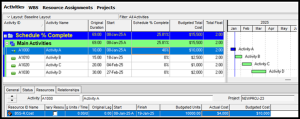
- At the WBS Level: The Schedule % Complete aggregates the activity-level percentages, weighted by the planned cost of each activity within the WBS.
Formula:
Schedule % Complete (WBS) = ∑(Activity % Complete x Activity Planned Cost) / Total Planned Cost of WBS
For instance, if a WBS has two activities:
- Activity A: Planned Cost = $10,000, Actual Cost = $4,000 (40%)
- Activity B: Planned Cost = $5,000, Actual Cost = $2,500 (50%)
The WBS Schedule % Complete will be:
((40% x $10,000) + (50% x $5,000)) / $15,000 = 43.3%
This ensures the WBS-level progress reflects the relative weight of each activity.
3. If the Updated Schedule Has Cost and the Baseline Is Assigned
In this case, Primavera P6 calculates the Schedule % Complete using the baseline dates and the updated schedule’s progress data. Cost data does not directly affect the Schedule % Complete calculation in this scenario.
- The calculation is based on the planned and actual durations, using the baseline as a reference point for planned progress.
Formula:
Schedule % Complete = (Actual Duration / Planned Duration from Baseline) x 100
For example:
- Planned Duration = 10 days (from the baseline)
- Actual Duration = 4 days (from the updated schedule)
The Schedule % Complete is:
(4 / 10) x 100 = 40%
This method ensures that the calculation aligns with the baseline’s planned schedule rather than cost data.
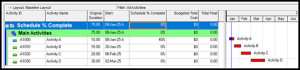
4. If the Updated Schedule Doesn’t Have Cost and the Baseline Is Not Assigned
In this case, Primavera P6 relies solely on Activity Duration to calculate progress.
- Since no baseline or cost data is available, the Schedule % Complete is derived from the Actual Duration compared to the total Planned Duration in the updated schedule.
Formula:
Schedule % Complete = (Actual Duration / Planned Duration) x 100
For example, if the planned duration in the updated schedule is 10 days and 4 days have been completed:
(4 / 10) x 100 = 40%
Without cost or baseline assignments, the calculation is straightforward and based on duration only.
Important Insights
- Assigning a Baseline ensures progress is measured against the original plan.
- Without a Baseline, progress is tracked against the current project schedule.
- For Cost-Loaded Projects, earned value adds accuracy to performance measurement.
- Without Cost, Primavera relies solely on durations to measure progress.
By understanding these scenarios, you can effectively track and analyze your project’s progress in Primavera P6.
Conclusion
Understanding how Schedule % Complete is calculated in Primavera P6 is essential for tracking project progress effectively. Each scenario depends on whether cost and baseline assignments are available.
For smooth project execution, always maintain an updated schedule and baseline while managing cost data effectively.
If you want to know about Duration % Complete and Physical % Complete, you check this link: https://planningengineer.net/duration-percentage-vs-physical-percentage-complete-in-primavera-p6-when-to-use-each/
Download the Article Resources
Calculation of Schedule % Complete in Primavera P6 266.66 KB 455 downloads

Keep in Touch
Join our Email Newsletters and receive FREE weekly useful content!

Keep growing with Planning Engineer
Learn with a clear path
From Primavera P6 basics to claims, cost control and Power BI. Start with our free courses.
Browse coursesGet help on WhatsApp
Every course comes with a private WhatsApp support group where our team answers your questions.
Join a courseFind planning jobs
117 open planning and project control jobs. Post your resume so employers can find you.
See jobsGet tips by email
Free planning tips, templates and course offers. Unsubscribe any time.
Related posts:
 Understanding Merge Hotspot, Diverge Hotspot, and Logic Hotspot in Project Scheduling
  How to connect Primavera P6 to Power BI (Full Guide)
  Small Business Management (Feasibility Study Excel Template)
  How to Copy Progress Updates from one Project to another
  How to Write an Effective Motivational Statement
You may also like

How to Minimize Total Float in Construction Activities

