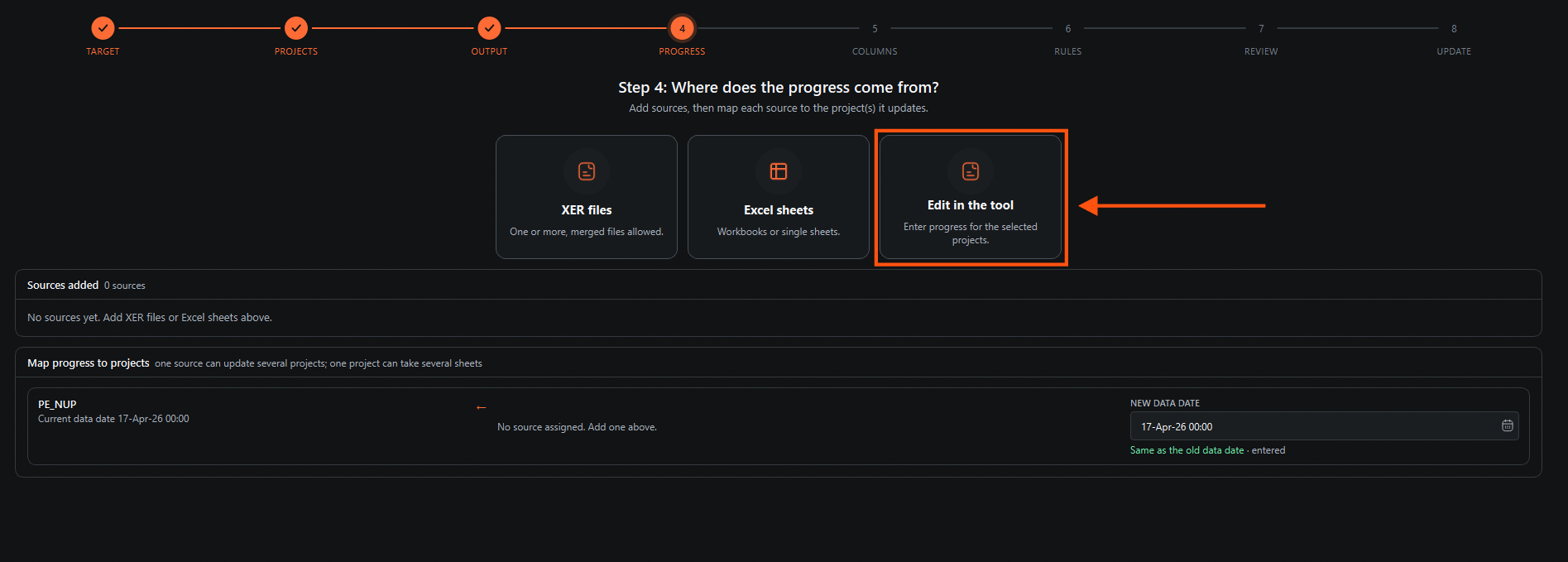
Step 1
Before you start: complete Open the Schedule Update Tool and Select an XER Project.
Choose Edit in the Tool

Step 2
In this window, you can add the new percentages, Start date, and Finish date, after adding the update click on the Use this Progress Report Button

Step 3
Assign the new Data Date and the hour, then click on the Next button

Step 4
This window shows the rules that the tool follows to update. If you do not want some rules to run, you can turn them off, then click the Run Verification button.


Step 5
In this window, review the errors, warnings, and changes for the update. Set the working day if needed.

Step 6
If there are errors, click the Errors button to fix them, or click Exclude all activities with errors. Then click the Next button.

Step 7
Click the Update Project button

Next: Import in P6
Follow Import the Updated XER File to P6 to import the updated XER file into P6 and schedule it.
Update XER File Manually in the Tool
Enter the progress manually in the Schedule Update Tool and update an XER file.
Guide 10 of 11 in Updating Tool