
Step 1
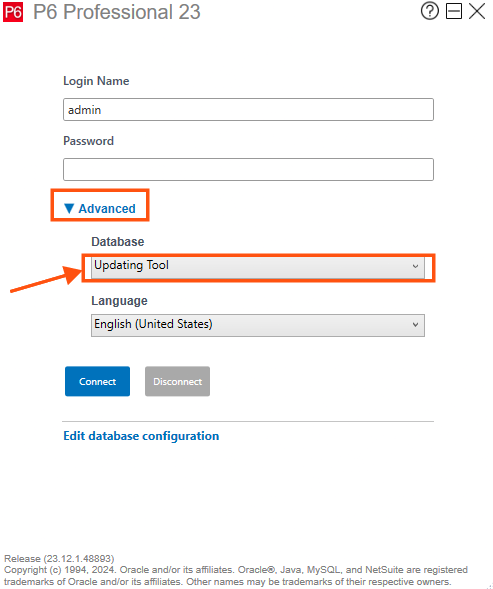
Make sure you know which database the project is in.
Step 2
Choose Tools Package

Step 3
Choose Schedule Update Tool

Step 4
Choose P6 Database, then click Browse

Step 5
Open the database path and choose it

Step 6
Click on the Use This Database button

Step 7
Choose the project you need to update and click the Next button

Step 8
(Optional) Clone the project to keep the original unchanged and update the cloned copy, then click the Next button.

Open the Schedule Update Tool and Select a P6 Project
Open the Schedule Update Tool, connect to your P6 Professional (SQLite) database and select the project to update.
Guide 1 of 11 in Updating Tool


