Construction Project Planning (Intermediate Level) with P6 + Excel
Take your planning skills to the next level with an intermediate course focused on practical, real-project workflows.
You will learn how to build smarter schedules, improve progress control, and apply cost/resource loading techniques using
Primavera P6 + Excel (with planning-friendly reporting concepts that support decision making).
- Best for: planners / schedulers who already know the basics and want to level up
- Hands-on learning with practical examples and planning techniques
- Certificate upon completion
Instructor: Hany Ismail — Planning Director & Trainer
| Recorded Videos 22 Hours | Practicing Time 28 Hours |
| Access Lifetime Access | Prerequisites (Recommended) Primavera Online Basic Course – English |
Enroll Now
If you don’t have an account, it will be created automatically during checkout.
What is this course about?
Effective project time management is complex — and using tools like Oracle Primavera P6 adds another layer of complexity.
This course is designed to reduce confusion and learning time, and help you apply Primavera confidently in real project planning workflows.
Even experienced professionals can find Primavera intimidating without structured practice and repetition.
That’s why you get lifetime access and a step-by-step path that builds skill through practical application — not theory only.
Who should attend this course?
- Planners / Schedulers
- Planning Engineers
- Construction Companies
- Project Management Consultants
Is this course suitable for me?
If your answer is NO to one or more of the following, then YES — this course is suitable for you:
Can you:
- Create a smart, auto-generated Activity ID system?
- Implement Power Queries in Excel to create an activity list?
- Auto-generate shop drawings and materials lists from an activity list?
- Auto-generate relationships between construction activities and engineering activities?
- Generate a dynamic WBS path to import activities into the correct WBS from Excel?
- Export activity costs from Excel to P6?
- Calculate working hours per activity and export resource professions to P6?
If your answer to all the above is YES, then you should go to the advanced level.
Otherwise, this intermediate level is the right next step.
What does this class have to offer?

The course is delivered in two formats — Theory and Application.
You’ll learn the scope, tools, and workflows of Primavera P6, then apply them through hands-on exercises to build real planning skill.
You will be able to analyze critical aspects of construction planning and control such as resources, progress,
delays, and delay analysis techniques.
What makes this course unique?

This course focuses on refining your ability to apply Primavera in real project situations.
You’ll work through a realistic scenario, learn critical planning techniques, and gain tips and tricks for using Primavera + Excel,
including BOQ, baseline setup, and layouts.
Course WhatsApp Support Group
All enrolled trainees get an invitation to the course WhatsApp support group, where our team answers your questions about the lessons, Primavera P6 and Excel. The invitation link appears at the top of every lesson after you enroll.
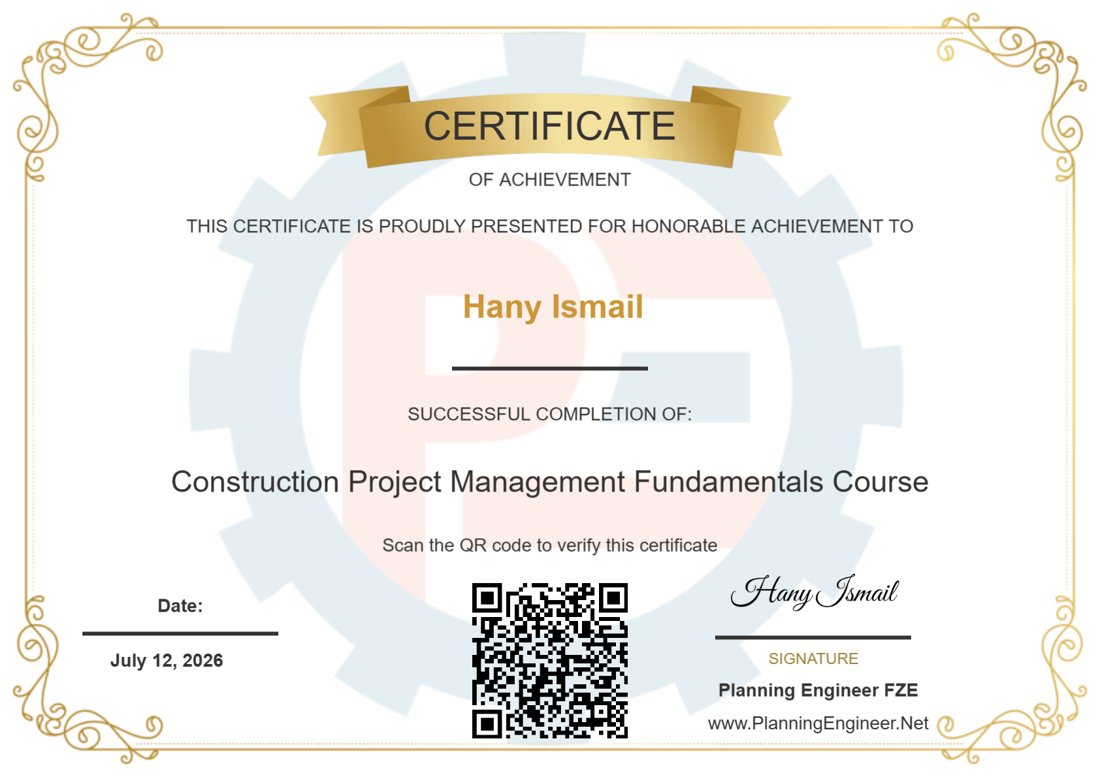
Certificate of Completion

Completing this course and receiving the certificate can enhance your professional reputation and strengthen your CV.
Course Contents
- How to read project BOQ from a planning point of view
- How to read project drawings from a planning point of view
- How to create an activity list
- How to create cost loading
- How to create resource loading
- How to load costs and resources from Excel to P6
- How to estimate activities duration based on quantities
- How to link activities + relationships
- How to create shop drawings log
- How to create procurement log
- How to create cash flow
- How to create a resources histogram
- How to update the schedule
- How to create weekly/monthly reports
After completing this course, you will be able to create a professional project schedule using our easy/smart planning techniques and tools.
Download Course Contents
Articles Library (Continuously Updated)
We Believe in Continuous Improvement – Making Planning Easy for You!
If you don’t find the answer you’re looking for in the list below, post your question in the course WhatsApp support group and we’ll create a dedicated article.

Writing-an-Effective-Resume
Date Created: February 29, 2024 | 5385 downloads
What to do when you are running behind deadlines?
Date Created: February 29, 2024 | 3323 downloads
What is Project Closeout Phase? (Full Guide)
Date Created: February 28, 2024 | 1377 downloads
How to calculate weight for your time schedule
Date Created: November 1, 2023 | 6019 downloads
How to Copy Progress Updates from one Project to another
Date Created: October 26, 2023 | 2440 downloads
How to Create Work Breakdown Structure WBS using Standard Divisions of Work
Date Created: October 10, 2023 | 3341 downloads
Top 18 Excel Functions for Engineers
Date Created: October 10, 2023 | 4098 downloads
Planning and Scheduling Procedures
Date Created: October 10, 2023 | 2610 downloads
Quantity Surveyor Job Description Template (Article)
Date Created: October 9, 2023 | 2588 downloads

Quantity Surveyor Job Description Template (Excel)
Date Created: October 9, 2023 | 4255 downloads
Join Now
Activate your access by completing checkout.
Note: If you don’t have an account, it will be created automatically during checkout.
Course Features
- Lectures 19
- Quiz 0
- Duration 50 Hours
- Skill level Intermediate
- Students 906
- Certificate Yes
- Assessments Yes
Curriculum
- 5 Sections
- 19 Lessons
- Lifetime
- Creating Project Baseline Schedule and Data Loading12 Items
- 2.1How to read project BOQ from a Planning Point of view110 Minutes
- 2.2How to read project Drawings from a Planning Point of view90 Minutes
- 2.3How to create activities list100 Minutes
- 2.4How to Create Cost Loading and Import Activities from Excel to P6100 Minutes
- 2.5How to create resource loading80 Minutes
- 2.6How to load costs and resources from excel to p6110 Minutes
- 2.7How to estimate activities duration90 Minutes
- 2.8How to link activities90 Minutes
- 2.9Activities Relationships150 Minutes
- 2.10Shop Drawings Log90 Minutes
- 2.11Procurement Log95 Minutes
- 2.12Cash Flow and Manpower Histogram with Leveling27 Minutes
- Updating and Reporting4 Items
- Print Your Certificate1 Item
- Your Opinion Matters1 Item
- Support Articles Based on your Requests1 Item
Articles library
Practical articles and downloadable files for trainees on this course. New articles are added regularly.
The Earned Value Cost does not equal the Actual Cost.
Date Created: December 11, 2024 | 1106 downloads
Negative Float in Retained Logic and Progress Override
Date Created: December 11, 2024 | 1017 downloads
BL Start Date, Early Start , and Late Start in Primavera P6
Date Created: December 11, 2024 | 2690 downloads
How to use Excel macros in construction planning and scheduling
Date Created: December 3, 2024 | 1342 downloads
Complete Guide to Using Store Period Performance in P6
Date Created: December 1, 2024 | 1213 downloads
Review contractor progress
Date Created: November 27, 2024 | 1207 downloads
Reviewing Contractor's Progress from a Consultant Point of View
Date Created: November 27, 2024 | 1729 downloads
How to Create Effective Risk Registers [Articles]
Date Created: November 26, 2024 | 1698 downloads

Risk Register Template
Date Created: November 26, 2024 | 2137 downloads

How-to-read-project-Drawings-from-a-Planning-Point-of-view-Inputs-R1
Date Created: November 6, 2024 | 2562 downloads
Questions & answers
Answers from our team to questions students ask in the course support group.
General
QHow do I copy activity codes from one project to another?
- Open both projects together (in P6 20.12: select the projects with CTRL, right-click and choose Open).
- Create the same activity codes in the target project (Enterprise > Activity Codes, project-level codes).
- Show the activity code columns, copy the code values from the source activities and paste them on the matching activities in the target project.
- Review the result and save.
Tip: create the codes as Project codes, not Global, to avoid problems when exporting and importing XER files. Always keep a backup before big changes.


Creating Project Baseline Schedule and Data Loading
QP6 shows "An application event has been intercepted" (IAIE-1289-4) when I import resources from Excel. How do I fix it?
This is one of the common Excel-import errors in P6. Follow the fixes in this article: Solutions for the Error Message While Importing an Excel Sheet to P6.
If the error is still there, send your Excel file and XER to the course support group so the team can check it.
QThe total Floor Amount from Power Query does not match the BOQ total. Why?
This usually comes from how the data is loaded or how column types are set in the query. These two articles walk you through the fix:
QSome activities show 0 amount in my query although I gave them a small floor percentage (e.g. 1%). Why?
The cause is the Change Type step in Power Query. If some floor columns (for example "All floors" and "Foundation") are set to Whole Number (Int64) while the others are decimal, a value such as 0.01 is rounded to 0.
Fix: change the type of those columns to Decimal Number so 0.01 stays 0.01, then refresh the query.


Q"Get Data from Table/Range" does nothing in the Data Loading file. What should I do?
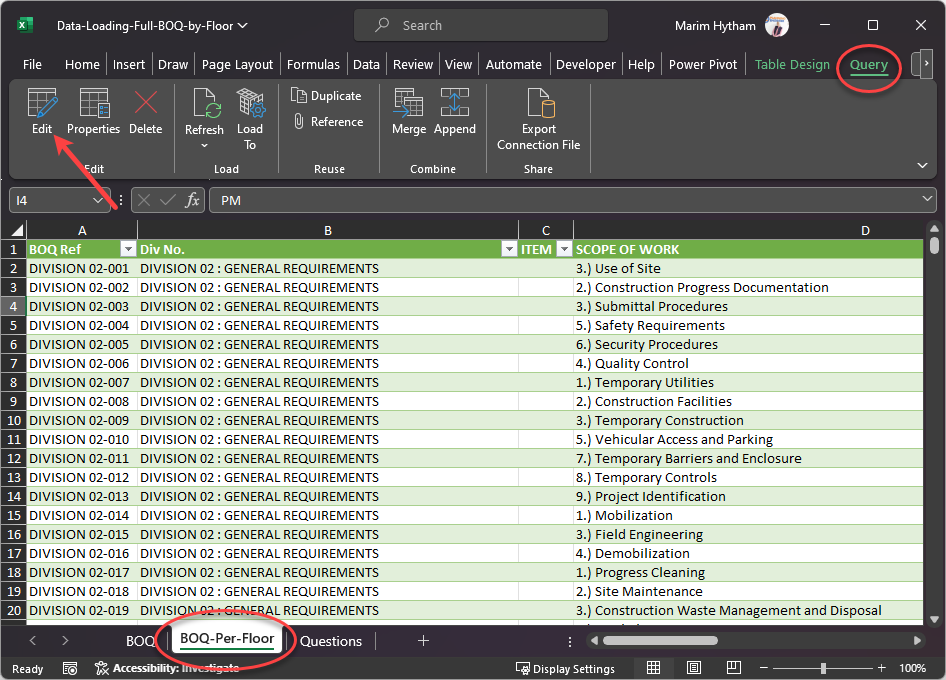
The file already contains a query, so you should not create a new one. The existing query is on the BOQ-Per-Floor sheet. To change it, click any cell in the query table, open the Query tab on the ribbon and click Edit to open the Power Query editor.
QHow do I calculate equipment and material resources, and how do I estimate activity durations?
- Equipment – use the same resource-loading approach as the labour in the course: add columns for each piece of equipment (loader, excavator, crane…) and apply their productivity rates.
- Materials – tracking and calculating material consumption is mainly cost-control scope. It is covered in the Cost Control for Construction Projects course.
- Activity durations – mostly based on experience from similar projects. You can also use the PERT estimate: (Optimistic + 4 × Most likely + Pessimistic) / 6.
QHow should I distribute an activity's cost over its sub-activities (first, second and third fix)?
There is no fixed rule or standard percentage – activities and fixes differ in cost and effort. Agree the split with your site team or project manager where possible. If that is not possible, distribute the cost by the manhours of each sub-activity.
Example: Activity A = 200 manhours, split into A-1 = 60, A-2 = 100, A-3 = 40.
- A-1 cost = 60 / 200 × cost of A
- A-2 cost = 100 / 200 × cost of A
- A-3 cost = 40 / 200 × cost of A
QWhen I copy resource assignments from P6 to Excel, the values are not distributed per month. What should I do?
Separate the resource types before you copy, depending on what you want to produce:
- Cash flow – filter Resource Type = Material, collapse the project, then copy the timescaled values to Excel.
- Manpower histogram – filter Resource Type = Labor, collapse the project, then copy the timescaled values to Excel.
Step-by-step guide with a template: How to Create Manhour Histogram from Primavera P6 [Template].
QDo you plan procurement for every floor or work package in the programme, or only long-lead items?
Procurement is planned per material, not per location. For example, if the same tiles go on every floor, add one procurement activity for that item. Long-lead materials are often kept apart from the others in the WBS.
QHow do you handle standard and repetitive materials, for example with a procurement log or a rolling look-ahead?
The same way as above: one procurement activity per material, not one per floor or area.
QHow do you set order-by dates, and do you link them to installation activities?
The procurement in the main schedule is kept at a high level. The detail goes in a separate document, the procurement tracking schedule. More reading:
Updating and Reporting
QWhat is the difference between Duration % Complete and Physical % Complete, and when should I use each?
- Duration % complete – how much of the planned duration has passed (5 of 10 days = 50%). Time and earned value move together. This is the usual default.
- Physical % complete – how much of the work is actually done (90 of 100 items installed = 90%), entered independently of time. Use it when time progress and earned value must be separated, e.g. equipment that is 90% installed but can only claim 50% until tested.

QAn activity is physically complete but not yet paid by the client. How should I update it in P6?
Update it as complete. P6 measures work progress, not payments. The earned value in the schedule shows what you are entitled to for the work done, not what has been received.
Payment delays, approvals and invoicing status should be tracked in your cost-control or ERP system. Schedule progress and cash collection are two separate but complementary processes.
QAs a client-side planner: the contractor's progress is not verified, the schedule has many negative floats, and the Level 4 schedule does not match Level 3. What should I do?
- Unverified progress – run regular site audits: each week pick some activities and check their status yourself. Document any difference and raise it in progress meetings.
- Negative float – ask the contractor's planner to explain the reason for each activity and their recovery plan. Accept or reject based on the project, the amount of float and the activities affected.
- Level 3 vs Level 4 – the L4 schedule should be a detailed breakdown of L3, using the same WBS so each L4 activity links back to its L3 activity, unless agreed otherwise.
- No respected baseline – you cannot monitor without a reference. Formally request a recovery schedule, review and approve it, then monitor and audit progress against it.
QCan the schedule % be calculated by weight instead of cost?
Yes. See the step-by-step article: How to calculate planned and actual using weight.
QHow do I assign weights to engineering and procurement activities for progress measurement?
If the BOQ has direct costs for engineering and procurement items, load them and give them weight in P6 like any other activity.
If the BOQ has no costs for them, you cannot weight them by cost or manpower. Track them with planned and actual dates and their percentages instead.
QHow can I find the activities that are delaying a milestone?
Method 1 – follow the driving relationships
- Filter the delayed milestone by its Activity ID.
- Open its Relationships and use Go To on the driving predecessors.
- Repeat – the driving activities share the milestone's total float.
Method 2 – isolate by total float
- Temporarily give the milestone a "Finish On or Before" constraint earlier than now, so its float becomes clearly unique (e.g. −50 days instead of −30).
- Filter Total Float less than −49.
- The activities shown are the ones driving the milestone delay. Remove the temporary constraint afterwards.
No questions match your search.
Target audiences
- Planning Engineers, Planning Managers, Site Engineers, Construction Managers, Project Managers