Online Primavera P6 Course for Engineers & Construction Managers
Learn how to use Oracle Primavera P6 to plan, schedule, monitor, and control construction projects
using practical, real-world applications — not theory.
- Best for: planning engineers, schedulers, site engineers, project managers
- No prior Primavera experience required
- Free enrollment with certificate upon completion
- Unlimited access — learn at your own pace
Instructor: Hany Ismail — Planning Director & Trainer
| Recorded Videos 10 Hours | Practicing Time 25 Hours |
| Access Lifetime Access | Prerequisites (Recommended) Project Management Fundamentals |
Enroll Now (Free)
Account will be created automatically during checkout.
Course Overview
Many engineers and project managers struggle to manage schedules efficiently when using complex tools like
Oracle Primavera P6. This course simplifies the learning process and explains Primavera through real construction workflows.
Primavera is powerful — and one short training is never enough. That’s why this course provides
unlimited access and structured learning from fundamentals to real applications.

What This Course Offers
- Theory: Primavera scope, logic, tools, and workflows explained clearly
- Application: step-by-step demos and hands-on practice using real project scenarios
Trainees practice what they learn, test their understanding, and improve their Primavera application skills progressively.

What You Will Learn
- Creating and managing schedules in Primavera P6
- Critical Path Method (CPM)
- Resource loading and tracking
- Progress updates and performance monitoring
- Delay analysis basics
- Using Primavera outputs to support decisions and claims
Who This Course Is For
- Planning engineers and schedulers
- Project and construction managers
- Construction companies and consultants
- Business analysts and technical professionals
- Anyone involved in project planning
Why Enroll?
- Hands-on learning built from real project challenges
- Improve schedule quality and project control capability
- Career growth in planning and project controls
- Foundation for EVM, CPM, KPIs, and advanced Primavera courses
Course WhatsApp Support Group
All enrolled trainees get an invitation to the course WhatsApp support group, where our team answers your questions about the lessons and Primavera P6. The invitation link appears at the top of every lesson after you enroll.
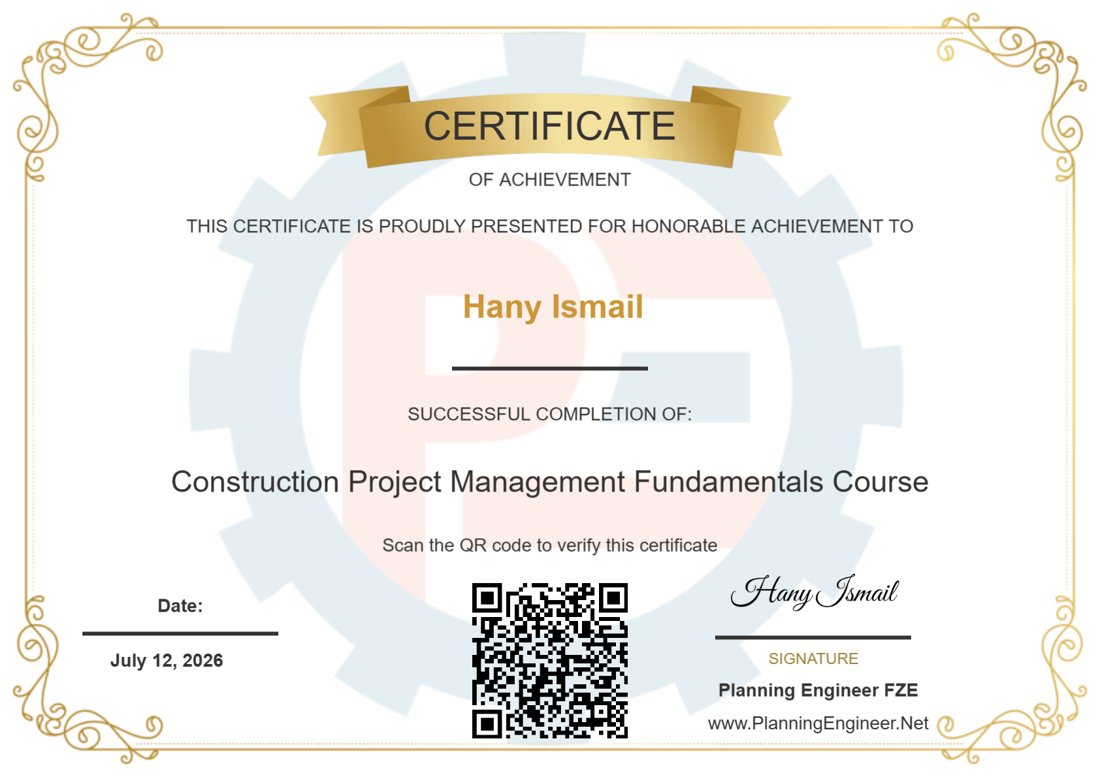
Certificate of Completion

Completing this course and earning the certificate demonstrates your Primavera P6 knowledge
and commitment to professional development.
Download Course Contents:
Articles Library for Trainees
Join Now
Enroll for free and start learning immediately.
Note: If you don’t have an account on the website, your account will be created automatically during checkout.
Course Features
- Lectures 38
- Quiz 0
- Duration 35 hours
- Skill level All levels
- Language English
- Students 5615
- Certificate Yes
- Assessments Yes
Curriculum
- 17 Sections
- 38 Lessons
- Lifetime
- Introduction3 Items
- The content of project management plan8 Items
- 2.1How to read and understand Primavera Time Schedule 110 Minutes
- 2.2How to read and understand Primavera Time Schedule 25 Minutes
- 2.3How to read and understand Primavera Time Schedule 35 Minutes
- 2.4Project Cash flow and Manpower Histogram5 Minutes
- 2.5Shop Drawings Tracking Log3 Minutes
- 2.6Materials Procurement Tracking Log3 Minutes
- 2.7Weekly / Monthly Reports4 Minutes
- 2.8project management plan28 Minutes
- Excel Fundamentals for Planning Engineers2 Items
- Oracle Primavera Fundamentals1 Item
- Create Activity List and Cost Loading1 Item
- Create schedule Time Frame in Primavera5 Items
- 6.1Create WBS and Activity codes in primavera40 Minutes
- 6.2Import activity list from Excel to Primavera26 Minutes
- 6.3Estimate the activities duration in Primavera8 Minutes
- 6.4Link Activities and define activities relationships in Primavera27 Minutes
- 6.5Add the cost to each activity in the schedule8 Minutes
- Add-shop-drawings-and-materials-time-schedule4 Items
- Estimate Manpower - Manpower loading Sheet4 Items
- Review a Primavera Time Schedule1 Item
- Create Cash Flow and Manpower Histogram2 Items
- Create baseline, Payment Certificate and update the schedule1 Item
- Photoshop for Planning Engineers1 Item
- Samples of Projects, templates and reports1 Item
- Installing and Managing Primavera P6 DataBases1 Item
- Completion Certificate1 Item
- The Power of LinkedIn Network1 Item
- Support Articles Based on your Requests1 Item
Articles library
Practical articles and downloadable files for trainees on this course. New articles are added regularly.

Sequence of Plaster Activity in Primavera P6
Date Created: July 6, 2025 | 1198 downloads
What Activities Must Be Completed Before Starting Physical Construction on Site
Date Created: May 11, 2025 | 1472 downloads
How to Add Holidays to P6 Calendar?
Date Created: May 11, 2025 | 1312 downloads
How to Introduce Yourself in a Planning Engineer Interview
Date Created: May 11, 2025 | 1595 downloads
How to Verify the Progress % Complete of Activities Reported by the Contractor
Date Created: April 23, 2025 | 1392 downloads
The Applications of Negative Lags
Date Created: April 22, 2025 | 1231 downloads
What If the Baseline Schedule Is Found to Be Wrong
Date Created: April 22, 2025 | 1497 downloads
What Are the Typical Activities Under the Procurement WBS?
Date Created: April 14, 2025 | 1393 downloads
What documents are required for the creation of a baseline?
Date Created: April 9, 2025 | 1363 downloads
How to Mitigate Risks in Construction Projects
Date Created: March 10, 2025 | 1797 downloads
Questions & answers
Answers from our team to questions students ask in the course support group.
General
QHow can I download the course videos?
Follow the steps in this guide: Basic Planning Course – download steps (Word).
QWhat should we do to complete the project within budget?
- Accurate cost estimation from the start.
- Realistic budget including contingency for unexpected costs.
- Effective planning – a realistic WBS and logical relationships.
- Budget control over time – track every cost to see what drives overruns.
- Change management – act before the cost of a problem exceeds the cost of the change.
- Risk management – identify risks early and prepare responses.
- Subcontractor and supplier management – monitor them closely; they are one of the biggest budget factors.
- Lessons learned – review similar projects and keep your own lessons-learned log.
QWhat is site allocation?
Site allocation is planning how to use the site area effectively to get the highest productivity. It includes:
- Selecting the locations of storage areas and what is stored where.
- Planning equipment and traffic movement to avoid interruptions.
- Any arrangement that makes the best use of the site to increase productivity and reduce losses.
It should be considered at the start of every new project.
Oracle Primavera Fundamentals
QGridlines do not show when I print or export a layout to PDF. How do I turn them on?
- Open Print Preview, then Page Setup.
- Go to the Options tab and tick Grid Lines.
- The gridlines now appear in the printed / PDF layout.


QWhat is the purpose of activity codes in Primavera P6?
Activity codes let you organise the same activities in a different hierarchy from your WBS. For example you can:
- Group activities by BOQ division (e.g. all concrete works).
- Filter by type of work: internal finishes, external finishes, MEP.
- Group by building, zone or subcontractor.
This gives you organised, targeted views and reports, such as progress in a specific location or the performance of a specific team. In the example below the activities are grouped by building type, so the schedule and performance % of each type can be tracked easily.

QI created a new EPS node but the new project does not open. What should I do?
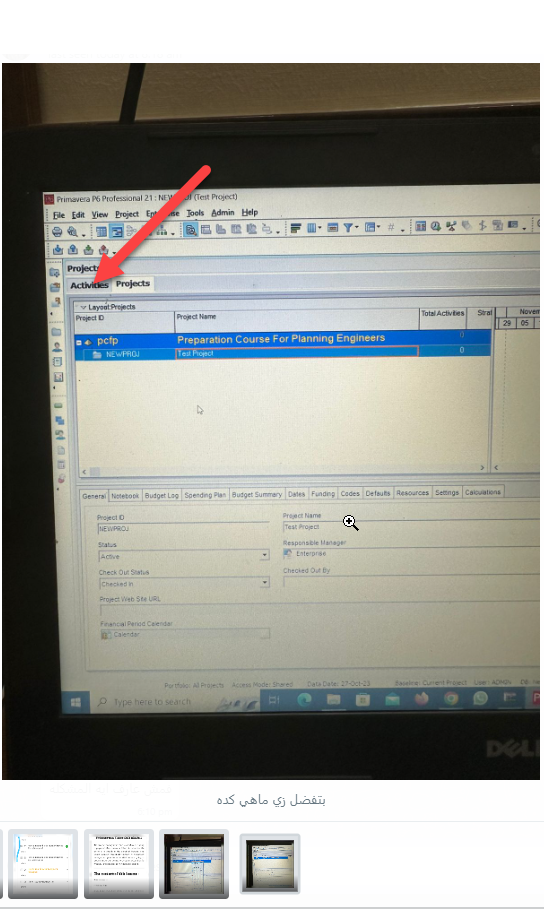
The project is created, but P6 is still showing the Projects window. Click the Activities tab to open and work on the project.
Create Activity List and Cost Loading
QI imported the cost from Excel to P6 but the total budgeted cost still shows $0. Why?
This usually happens when the cost is entered on the wrong sheet of the Excel import file. The cost must be entered on the TASKRSRC (resource assignments) sheet, not on the first sheet (TASK).
- Export the activities and resource assignments from P6 to Excel.
- Enter the cost against each activity on the TASKRSRC sheet.
- Import the file back into P6 and check the Budgeted Total Cost column.
A trainee who had this issue confirmed that moving the cost to the TASKRSRC sheet solved it.
QIs there a reference for creating cost loading for the WBS activities?
Yes. Follow this step-by-step article: Create Cost Loading Using Power Query.
QHow do I decide the percentage distribution of a quantity between floors?
Distribute the activity quantity in proportion to what drives it, usually the floor area.
- Two identical floors: 50% each.
- Floor A = 500 m² and Floor B = 350 m²: Floor A = 500 / (500 + 350) = 58.8%, Floor B = 350 / (500 + 350) = 41.2%.
QWhen importing cost from Excel, should I enter it in Budgeted Units or Budgeted Cost?
Both work. Budgeted Units and Budgeted Cost will both import the total cost. It only depends on which column you included when you exported the Excel sheet from P6, so enter the cost in the column that exists in your exported file.
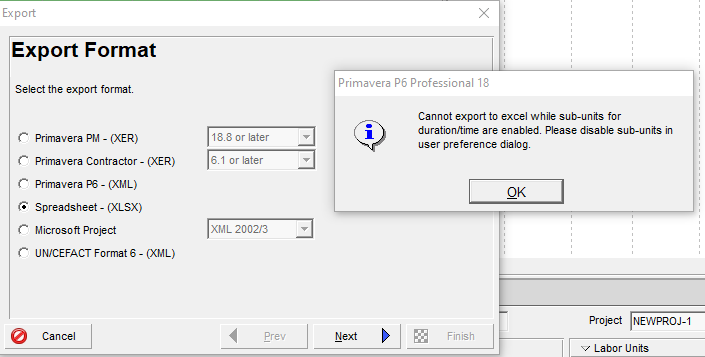
QI get an error when exporting activities from P6 to Excel. How do I fix it?
This error appears when sub-units are enabled for durations or units in your user preferences. Excel export does not accept them.
- Go to Edit > User Preferences.
- Open the Time Units tab.
- Untick Sub-unit under both Units Format and Durations Format.
- Export to Excel again.
Add-shop-drawings-and-materials-time-schedule
QShould shop drawing submittals be linked to the construction activity with a Start-to-Finish relationship?
You can use Start-to-Finish for pre-construction activities, but it is not recommended because its logic is more complicated than the other relationship types and harder to review and update.
A better approach is to keep standard relationships and use lags to place the submittal and approval activities right before the related construction activity, which reduces their total float. If a calculated submittal date falls before the project start, the procurement / approval durations need to be reviewed against the construction start.
QDo you plan procurement for every floor or work package in the programme, or only long-lead items?
Procurement is planned per material, not per location. For example, if the same tiles go on every floor, add one procurement activity for that item. Long-lead materials are often kept apart from the others in the WBS.
QHow do you handle standard and repetitive materials, for example with a procurement log or a rolling look-ahead?
The same way as above: one procurement activity per material, not one per floor or area.
QHow do you set order-by dates, and do you link them to installation activities?
The procurement in the main schedule is kept at a high level. The detail goes in a separate document, the procurement tracking schedule. More reading:
Estimate Manpower - Manpower loading Sheet
QHow can I estimate manpower and equipment for a tender programme when the estimation data comes late?
A tender programme is built with very limited information, so accurate manpower is hard to get. Two practical approaches:
- Ask the estimation team for the manhours they used in the cost estimate and distribute them to the programme activities.
- Make a rough estimate from similar previous projects using the built-up area. Example: Project A, 1,000 m² built-up area = 20,000 manhours. A similar tender project of 500 m² ≈ 10,000 manhours.
Review a Primavera Time Schedule
QHow do I deal with delayed activities, resource levelling issues, excessive float and negative lags?
- Activities delayed by a predecessor or successor – this is normal; adjust the relationships or durations in the baseline to meet the expected dates.
- Activities delayed by resource levelling – P6 automatic levelling can cause this. Level manually by moving activities and checking the impact on the schedule. (Covered in depth in the intermediate planning course.)
- Activities that cannot be levelled – consider increasing the duration, working more hours, or splitting the activity.
- Total / free float limits – excessive total float gives a misleading picture when updating. Add reasonable logic links to reduce it.
- Negative lag not allowed by the client – replace Finish-to-Start with negative lag by Start-to-Start or Finish-to-Finish with a positive lag.
Create Cash Flow and Manpower Histogram
QHow do I create a manpower histogram from estimated manhours?
- Create a labour resource in Primavera.

- Assign it to the relevant activities (Add Resource) and enter the calculated manhours as Budgeted Units.

- Open Resource Assignments and show the columns Activity ID, Activity Name, Resource ID Name and Budgeted Units.

- Right-click the timescale and change the Date Interval (e.g. weeks or months).

- Copy the rows to Excel and, for each period, calculate: Manhours / (working days per period × working hours per day). Example: 2,500 manhours in December, 25 days × 8 hours = 2,500 / 200 = 12.5 average daily workers.

- Plot the average daily manpower as a histogram.

Create baseline, Payment Certificate and update the schedule
QMy project is ~70% complete but Schedule and Performance % complete show 0%. Why?
Check these points:
- Cost / resource loading – the roll-up of performance % complete is weighted by cost or units, so activities must be loaded.
- Data date – schedule (F9) the project at the data date you want the progress calculated for.
- Baseline – Schedule % complete is calculated against the project baseline, so make sure a baseline is assigned.
If it still shows 0%, send your XER file to the course support group so the team can review it.
QCan P6 show the performance % complete of a previous data date?
By default, no. When you change the %, the previous value is overwritten. Options:
- Record the % complete, earned value and actual cost of each period in an Excel sheet.
- Keep a copy of the project (XER) for every update and start each new update on a copy.
- Use Financial Periods in P6 to store the actuals of each period, so they can be recalled later.
QCan I update progress (actual dates and % complete) in Excel and import it into P6?
Yes, and for large schedules it is much faster than updating activities one by one. Update Actual Start, Actual Finish and Actual % in an Excel template, then import it into P6.
Full tutorial with the template: Import progress updates with actual dates from Excel to Primavera P6.
No questions match your search.