Course WhatsApp Support Group
All enrolled trainees get an invitation to the course WhatsApp support group, where our team answers your questions about cost control, the data model and your reports. The invitation link appears at the top of every lesson after you enroll.
Certificate of Completion

Completing this course and receiving the certificate of attendance can enhance your professional reputation and provide a competitive advantage in the job market. The certificate serves as tangible evidence of your newly acquired knowledge and skills, and can demonstrate to potential employers or clients your commitment to professional development.
In addition, having completed this course and earned the certificate can open up new opportunities for career advancement or career change. It can also serve as a foundation for pursuing more advanced courses or certifications in the field of project management.
Download Course Contents:
We Believe in Continuous Improvement – Making Planning Easy for You!
Driven by your questions and feedback, we’ve built an ever-growing Articles Library to support your learning journey. This library is regularly updated with fresh content to address your most common inquiries and requests.
If you don’t find the answer you’re looking for in the list below, don’t worry! Simply post your question in the course WhatsApp support group, and we’ll create a dedicated article to help you and others in the future.
Your feedback fuels our growth – let us know how we can support you better!

How to Verify the Progress % Complete of Activities Reported by the Contractor
Date Created: April 23, 2025 | 1384 downloads
What are the Limits of Performing Cost Control using Primavera P6
Date Created: March 19, 2025 | 838 downloads
What are the differences between Cost Control and Cost Estimation
Date Created: March 5, 2025 | 1249 downloads

Twelve Month Profit and Loss Projection (Excel)
Date Created: December 16, 2024 | downloads
Review contractor progress
Date Created: November 27, 2024 | 1195 downloads
Variation Orders and EOT
Date Created: May 8, 2024 | 3056 downloads
How to perform Cost Control in Construction Projects
Date Created: April 29, 2024 | 4019 downloads

Twelve-Month Profit and Loss Projection Excel Template
Date Created: March 26, 2024 | 5954 downloads
how to add the advanced payment to your schedule and link it?
Date Created: March 14, 2024 | 8388 downloads
The Cost of Quality vs. the Cost of Poor Quality: Which is Cheaper?
Date Created: March 14, 2024 | 3608 downloads
- 1
- 2
Course Features
- Lectures 39
- Quiz 0
- Duration 30 Hours
- Skill level All levels
- Language English
- Students 818
- Certificate Yes
- Assessments Yes
Curriculum
- 22 Sections
- 39 Lessons
- Lifetime
- Welcome Message and Join our Course Email List2 Items
- Introduction4 Items
- Chapter 0 - Master Sheet2 Items
- Chapter 1 - Cots Estimation2 Items
- Chapter 2 - Schedule Planned2 Items
- Chapter 3 - Activity and BOQ2 Items
- Chapter 4 - Monthly Direct Costs2 Items
- Chapter 5 - Monthly Indirect Costs2 Items
- Chapter 6 - Monthly Paymets2 Items
- Chapter 7 - Monthly Cash In and Cash out2 Items
- Chapter 8 - Weekly Progress Update2 Items
- Chapter 9 - Direct Cost Progress Updtae2 Items
- Chapter 10 - Actual Costs Update2 Items
- Chapter 11 - Summary Cost Report2 Items
- Chapter 12 - Detailed Cost Report2 Items
- Chapter 13- Making Data Model Dynamic1 Item
- Chapter 14 - Data Analysis and Corrective Actions1 Item
- Cost Control Manual PDF Book1 Item
- Course Completion Certificate1 Item
- Bonus: Activity BOQ linking Tool1 Item
- Share Success and leave a review1 Item
- Support Articles Based on your Requests1 Item
Articles library
Practical articles and downloadable files for trainees on this course. New articles are added regularly.
How to Verify the Progress % Complete of Activities Reported by the Contractor
Date Created: April 23, 2025 | 1384 downloads
What are the Limits of Performing Cost Control using Primavera P6
Date Created: March 19, 2025 | 838 downloads
What are the differences between Cost Control and Cost Estimation
Date Created: March 5, 2025 | 1249 downloads
Twelve Month Profit and Loss Projection (Excel)
Date Created: December 16, 2024 | downloads
Review contractor progress
Date Created: November 27, 2024 | 1195 downloads
Variation Orders and EOT
Date Created: May 8, 2024 | 3056 downloads
How to perform Cost Control in Construction Projects
Date Created: April 29, 2024 | 4019 downloads
Twelve-Month Profit and Loss Projection Excel Template
Date Created: March 26, 2024 | 5954 downloads
how to add the advanced payment to your schedule and link it?
Date Created: March 14, 2024 | 8388 downloads
The Cost of Quality vs. the Cost of Poor Quality: Which is Cheaper?
Date Created: March 14, 2024 | 3608 downloads
- 1
- 2
Questions & answers
Answers from our team to questions students ask in the course support group.
General
QWhat is the difference between a prime cost sum and a provisional sum?
Both are estimated amounts used at tender stage for things whose cost is not known exactly:
- Prime cost (PC) sum – for items you know clearly (equipment, materials…) but whose exact current price you cannot fix yet.
- Provisional sum – for part of the scope of work that is not yet defined or whose data is not ready, so you cannot price it in detail.
QWhat should we do to keep a project within budget?
- Accurate cost estimation from the start.
- A realistic budget that includes contingency for unexpected and emergency costs.
- Effective planning – a realistic WBS and logical relationships.
- Control the budget over time – track every cost to see what costs more without results.
- Change management – act before the cost of the problem exceeds the cost of the change.
- Risk management – study the risks and be ready for them.
- Subcontractor and supplier management – monitor them closely; they are one of the biggest budget drivers.
- Lessons learned – use previous similar projects and keep a lessons-learned log.
Chapter 6 - Monthly Paymets
QAfter appending the Monthly Payments query with the Advance and Retention query, the last columns are empty. Why?
The data model appends queries by column name. If a column is called "Work Date" in one query and the name in the other query differs even by one space, Excel treats them as two different columns, so you get extra empty columns.
Fix: copy the column headers from one table and paste them into the other so the names match exactly, then recreate the queries, add both to the data model and append them again.
QPart of the Monthly Payments sheet video shows screenshots instead of live steps. How do I follow it?
Stay on the sheet you are building and continue from minute 17:21 of the video. Where a step is shown as a screenshot, pause the video and apply the steps in the same numbered order.
Tip: after each connection/query you create, check that you have the same number of queries and connections as in the video. If the count differs, you have missed a step.
Chapter 8 - Weekly Progress Update
QWhen I add the second update from Primavera P6, do I need to remove the first update?
No. As long as the units of the first update are already stored in a financial period, update the same project directly: increase the % complete and add the new actuals.
If you want a backup of the first update, export the project or copy it first, then add the second update data to the current version.
Chapter 10 - Actual Costs Update
QThe actual costs macro overwrites the new values instead of adding them to the previous ones. What is wrong?
The macro looks for the first empty row in the table, treats it as the end of the table and pastes the data from the "data_entry" sheet there. If your table has an empty row (for example row 2), the macro keeps pasting in the same place.
- Add your data for the first time and resize the table to include the pasted data.
- Delete the empty row – the data will then accumulate.
- Make sure the button is assigned to the macro.

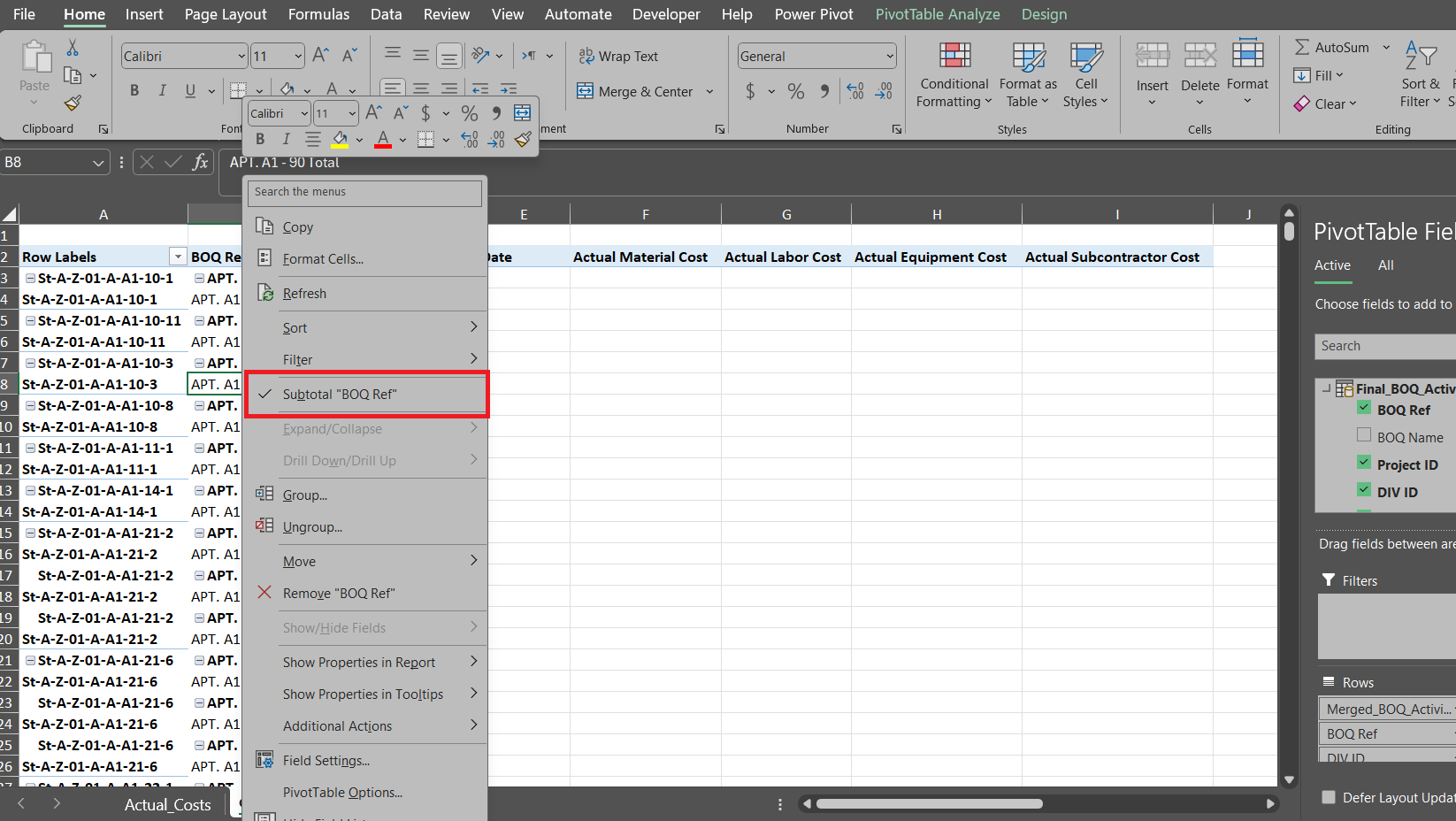
Also turn off the option highlighted below so there are no subtotals in the "data_entry" sheet:
Chapter 12 - Detailed Cost Report
QWhen I create relationships in the data model I get "a relationship already exists". How do I manage them?
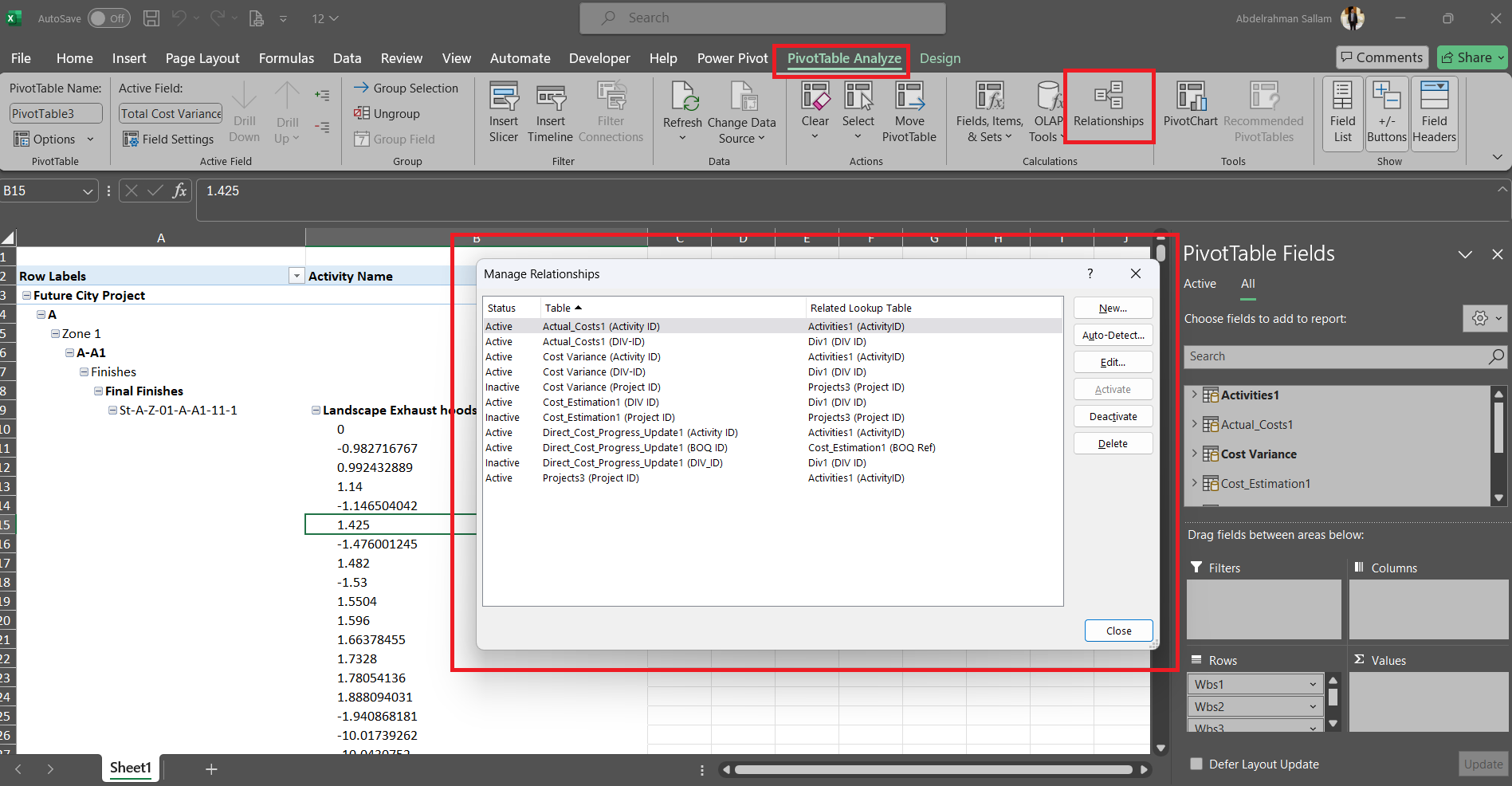
The downloaded files may already contain relationships. To view or delete them and create your own:
- Select any cell in the pivot table.
- Open PivotTable Analyze in the ribbon.
- Choose Relationships.
- In the Manage Relationships window, delete or edit the existing relationships, then create the ones you need for the report.
No questions match your search.