
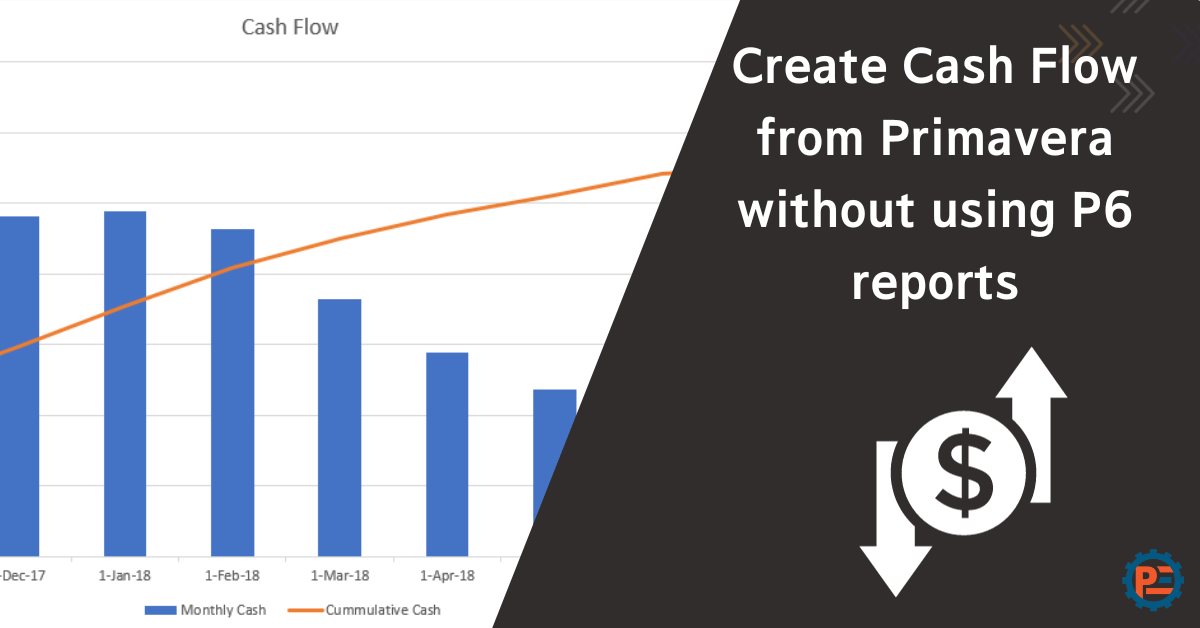
6 Steps to create Cash Flow from Primavera without using P6 reports
Managing project cash flow is essential for successful project control and financial planning, it supports budgeting, resource allocation, risk management, and informed decision-making, which makes the project financially healthy and successful.
While Primavera P6 offers a cash flow report, there are situations where this feature may be missing or inaccessible. Furthermore, it is more handy to have the cash flow in Excel format that all the project team can access without installing Oracle Primavera P6.
In this article, I will show you a simple method to create a cash flow from Primavera without using the cash flow report in Primavera. This method is faster and maybe your only choice in some Primavera versions where the cash flow report is missing.
Ready to take your skills to the next level? 🚀 Check out our Special Online Courses! 🚀
Gain valuable insights, boost your career, and learn from industry experts.
1- Navigate to Resource Usage Spreadsheet
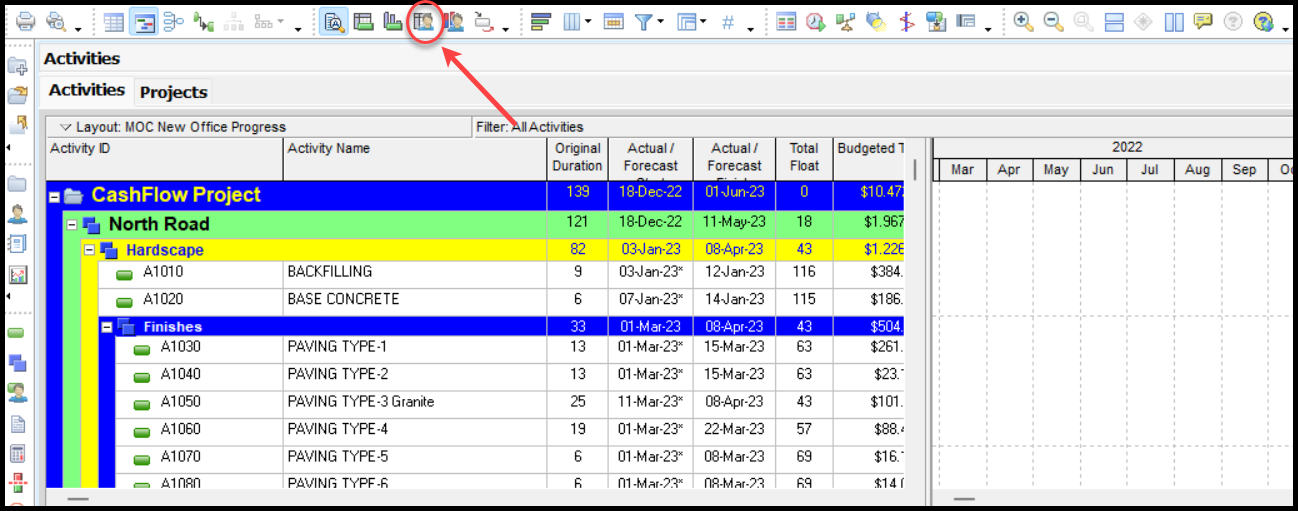
Click on the resource usage spreadsheet and select the cost resource as per the photo above. This is also known as Primavera cash flow if you use materials to load costs.
2- Copy the Cost Resource

Cost Control for Construction Projects
Course WhatsApp Support Group All enrolled trainees get an invitation to the course WhatsApp support group, where our team answers your questions…
- 814 students
- WhatsApp support group
- Certificate
Right-click on the cost resource and copy. Please note that you need to adjust the right columns to show the units per month/week as you prefer in your cash flow.
3- Paste Values into Excel

Paste the values in the Excel sheet as seen in the photo above.
4- Customize Excel Sheet

Delete unnecessary columns, change Cell A2 with (Monthly or Weekly cost), and format the cells as numbers.
5-Introduce Cumulative Cash Row

Add cumulative cash row as per the photo above.
6- Create a Cash Flow Chart

Now Select the data in cells A1 to O3 and insert a chart. Make the Monthly cash as columns and Cumulative cash a line with the secondary axis.
Download the Resources of this Article
6 Steps to create Cash Flow from Primavera without using P6 reports 600.67 KB 3589 downloads

Keep in Touch
Join our Email Newsletters and receive FREE weekly useful content!

Keep growing with Planning Engineer
Learn with a clear path
From Primavera P6 basics to claims, cost control and Power BI. Start with our free courses.
Browse coursesGet help on WhatsApp
Every course comes with a private WhatsApp support group where our team answers your questions.
Join a courseFind planning jobs
117 open planning and project control jobs. Post your resume so employers can find you.
See jobsGet tips by email
Free planning tips, templates and course offers. Unsubscribe any time.
Related posts:






You may also like

How to Minimize Total Float in Construction Activities

